AI Text to Video Generator: What You Control

Five levels of control
| Level | What you control | Set when | Can it change later? |
|---|---|---|---|
| Project (Step 1) | Type, Visual Style, Scene Style, Costume Style, shape, Target Region, dialogue language | Before the script is read | No. Start a new project with the same script |
| Cast (Step 2) | Names, descriptions, pictures, voices, outfit states, your own photo (members) | After the read | Yes. New shots follow; old clips keep the old look until regenerated |
| Episode | Segment length: Standard 15 seconds or Long take 30 seconds | When the storyboard is generated | Per episode |
| Segment | The tier (resolution, look, price per second) | When you press generate | Yes, per attempt; every take is kept |
| Shot | Seconds, who is in frame, framing, camera, mood, the line | Any time before you regenerate | Yes, in the text, for free |
A rule of thumb: change things from the top down only while it is free. The project row is decided by one read; the shot row is decided by typing. Settings, item by item.
The look: Visual, Scene and Costume Style
Visual Style decides how every picture and every shot is drawn. The presets are grouped under 2D Animation, 3D Animation, Live-action and Stop-motion, and there is a custom style. Scene Style sets the world a story lives in and Costume Style what people wear; both are read with the script. All three are fixed once you continue. A few of the cards as they appear in Step 1:
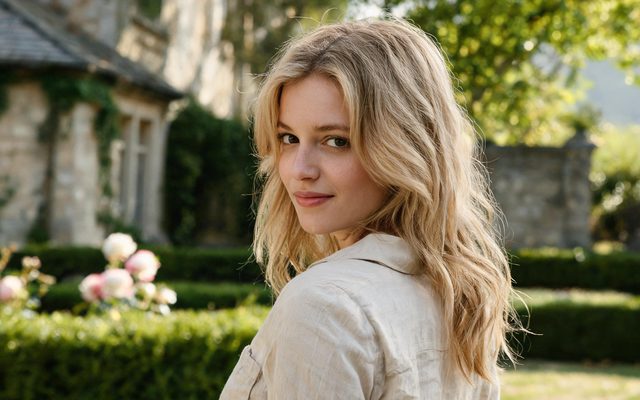
Visual Style: Digital HD
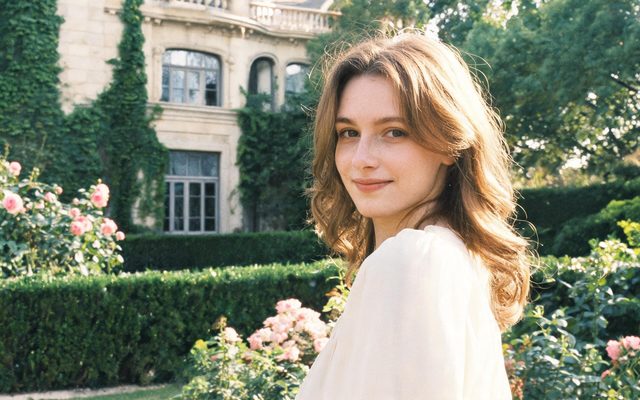
Visual Style: Shot on Film
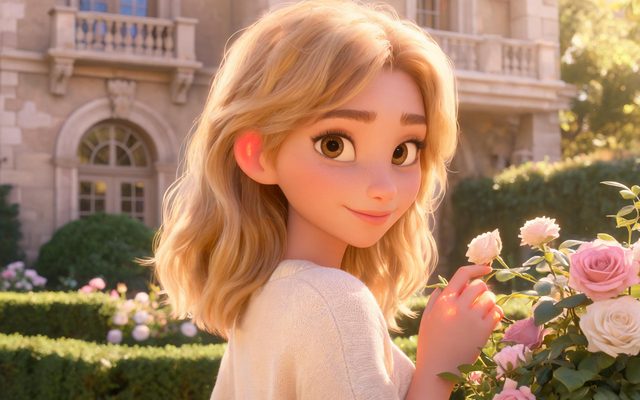
Visual Style: Family 3D Animation
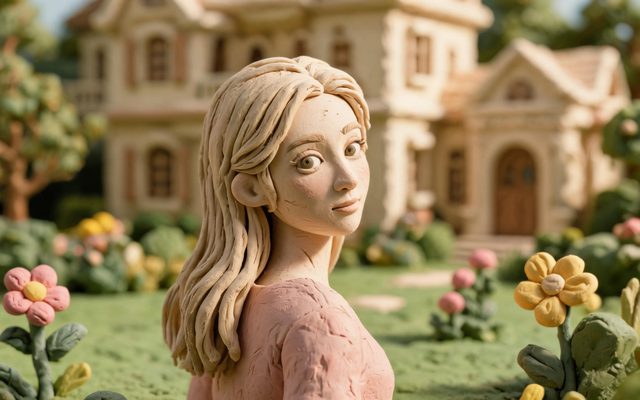
Visual Style: Claymation
Visual style presets, one by one · Custom visual style · Choosing visual style settings.
Shape and length
Shape. 16:9 Landscape is the default and the recommended choice for film and large screens; 9:16 Portrait suits a phone-first vertical drama. It governs the video only: character pictures are always portrait and scene pictures always widescreen. Shape does not change the price, and one project cannot mix both. In practice a 9:16 shot is framed close to fill a phone, and a 16:9 shot is staged wider with more of the room, which also suits more than two people in a shot. Vertical or landscape.
Length. A segment is up to 15 seconds or, on the tiers that allow it, 30; the shots inside add up to the segment, and a segment over its tier’s cap is refused before you pay. The segment ceiling is a ceiling, not a target. Dialogue needs about three English words a second. Shot seconds and timing · 15 or 30 second segments.
Keeping the same characters
Each character is one entry with one approved picture and one voice, and every shot that shows them is made from that entry. The control that matters most is in the shot text: name who is in frame with an @ chip. A line that says “a woman turns to the window” gives the shot nothing to hold on to; one that says @Mara does. For a new outfit or an injury, add a state to the character and pick it for the segments where it applies. The same face in every shot · Costume changes and scene states.
Resolution and price
Resolution belongs to the tier, not to a separate setting. The default tier is 480P at 10 credits a second; Wan 3.0 also offers 720P (recommended) and 1080P, and the other families give a different look, some with shorter segments. Work this way: draft on the default tier, fix the text, then regenerate the segments you will deliver on the tier you will deliver on. A higher tier does not fix a bad shot; the text does. If you mix tiers inside one episode, the join has to re-encode onto one canvas and loses a generation of quality; if every segment came from the same tier, the streams are copied. Which quality tier · What comes out.
Same text, different settings
| Same shot text | Setting changed | What you see |
|---|---|---|
| Two people argue across a kitchen table | 9:16 instead of 16:9 | Tighter framing on faces; less of the room |
| The same | Digital HD instead of Claymation | A different drawing of every cast picture and every shot |
| The same | Long take 30 s instead of Standard 15 s | Fewer, longer segments; more of the action in one generation |
| The same | A higher tier | More pixels or a different look; the same action |
| The same | @Mara written into the shot | The shot is made from her picture instead of an unnamed face |
That is why this page’s advice is the same as the editor’s: settle the project row first, because it cannot be changed, then work down. Text to movie · Text to video AI: writing the brief.
Make it in SceneMixer, start to finish
- Script: paste your own on Upload Script, or write the brief above in AI Create and let it draft the episodes.
- Step 1: Type Film; Scene Style Medieval Castle; Costume Style Medieval Nobility; Visual Style Shot on Film; Target Region; dialogue language; 16:9 Landscape. Then read the script.
- Step 2: check each lead has the look you want before the storyboard; the cast is what every shot is made from. The first 15 setup images on an account are free.
- Storyboard: generate episode 1 first (free on your first drama) and read it before you render anything. One place per segment.
- Video: render on the default tier at 10 credits a second, fix single shots instead of whole episodes, then put the episode together and post.
FAQ
What can I control in an AI text to video generator?
The type, look, shape and spoken language of the project; the cast; the segment length of each episode; the tier of each segment; and the seconds, framing and people in each shot.
Can I change the visual style after the script is read?
No. Visual Style is fixed once you continue. Start a new project with the same script and choose another.
Does 9:16 cost more than 16:9?
No. Video is priced by the second, not by the shape of the frame.
How do I keep a character the same?
Name them with an @ chip in every shot they are in. Each character is one entry with one picture and one voice.
Does a higher tier improve the shot?
It changes resolution and look, not what the shot shows. Fix the storyboard text first.
Can I mix tiers in one episode?
Yes. Each segment uses the tier selected when you generated it, but a mixed join is re-encoded and loses some quality.
How long can one generated clip be?
Up to 15 seconds, or up to 30 on the tiers that allow it. Longer video is segments joined.
What does it cost?
On the default tier video is 10 credits a second and joining is 1 credit a second; the price shows on the button before you press it.
Settle the project row, then work down
The settings that cannot change come first; the rest is text.
Updated November 2, 2026