Vertical 9:16 or Landscape 16:9

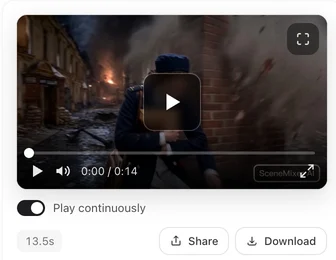
Open a finished landscape episode; the frame you see is what 16:9 gives you.
Where it is
Step 1, Set Up Your Project, the Aspect Ratio row: two options, 16:9 Landscape — Film / Large screen and 9:16 Portrait — Short drama / Mobile. Landscape is pre-selected and carries the Recommended badge.
What it changes
The frame of every video segment in the project, and therefore of the episode composite. Shots are framed for the ratio you chose: a 9:16 drama gets close framing that fills a phone screen; a 16:9 drama gets wider staging with more of the room in view.
What it does not change
The images in step 2. Character sheets are always portrait, because a full-body character sheet is tall. Scene and prop images are always widescreen, because they describe a place or an object rather than a frame. Changing the aspect ratio never regenerates an image. Why scene images are widescreen.
Which to pick
9:16 when the drama will live on phones: vertical-first platforms, feeds, the ReelShort-style format. 16:9 when it will be watched on a laptop, a TV or a site with a wide player, and for anything with more than two people in a shot, which vertical framing crowds. Making ReelShort-style dramas.
Can it change later
The ratio is chosen on the step 1 settings screen, together with the visual style, and both are fixed once you continue: after the script is read, step 1 shows the summary and the ratio as read-only. To make the same story in the other shape, start a new project with the same script and pick the other ratio; you can bring the cast across from the asset library. What can still change after the read.
Ads
An ad picks its aspect ratio in the ad composer, per ad, with the same two options and the same consequences. Ad options.
| Ratio | Default | Good for | Images in step 2 |
|---|---|---|---|
| 16:9 Landscape | Yes (recommended) | Laptop, TV, wide players, group shots | Unchanged |
| 9:16 Portrait | No | Phone-first vertical drama, feeds | Unchanged |
FAQ
Which aspect ratio is the default?
16:9 landscape, marked Recommended in step 1. Choose 9:16 for a vertical drama.
Will choosing 9:16 make my character images vertical?
Character sheets are always portrait and scene images always widescreen, whatever ratio the videos use. The setting affects video only.
Can I change the ratio after generating videos?
No. The ratio is fixed once you continue past step 1. For the other shape, start a new project with the same script.
Is 9:16 more expensive?
No. Video is priced by the second, not by the shape of the frame.
Can an episode mix both?
No. Every segment in a project uses the ratio chosen in step 1.
Pick the shape, then the story
Set the aspect ratio in step 1 and every segment follows it.
Updated October 2, 2026
Pricing·Novel to Video·Guides·Samples·Support·Privacy·Terms·Legal·Contact·© 2026 SceneMixer