After the Script Is Written

Upload and parse is what Start Creating does with the draft.
While it writes
Thinking: the structure is being worked out. AI Writing…: the text grows with the character count. Minimise keeps it as a capsule at the bottom right; you can use the rest of the site, and the capsule opens the panel again. There is no stop button: a writing that has started runs to the end, and it is charged when the script is delivered.
AI Writing Complete
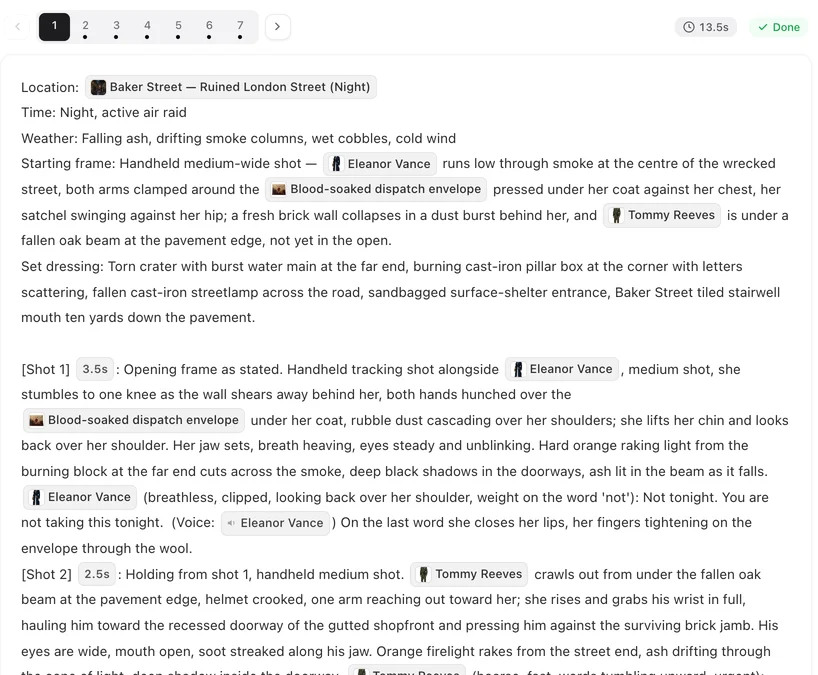
The script is shown in full. Read it. The button at the bottom is Start Creating ✦ N: N is the read price for this script’s length, the same as uploading it. Press it and the project is created and opens at step 1 with the settings form; the script is the project’s text. Cancel closes the window instead: nothing is created, and the draft waits in history.
Changing the draft
The script text is not edited in the window. To change it: write again with a sharper brief (the usual fix), or copy the text, edit it in any editor, and paste it into Upload Script. Small changes are better made after the read: the summary, the cast descriptions and every storyboard are editable for free inside the project. A sharper brief.
Writing History
The clock icon on the AI Create tab. Every draft is listed with its brief, length and date. Open one to read it and Start Creating from it at today’s read price. Drafts are not projects and do not count towards the project limit.
What was charged
The writing, when the script was delivered: one Usage line in Credit History. The read, when you press Start Creating. Nothing for closing the result window, nothing for opening history. Credit History.
| Button | Does | Charged |
|---|---|---|
| Minimise | Folds the panel into a corner capsule | — |
| Cancel | Closes the result window; the draft stays in history | No |
| Start Creating ✦ N | Creates the project and reads the script | The read |
| Close window | Nothing; draft stays in history | No |
| Writing History | Lists every draft; start any of them | No |
FAQ
Can I leave while it writes?
Yes. Minimise it; the capsule keeps it and you are told when it is done.
What is the price on Start Creating?
The read, priced by the script's length, the same as uploading that text.
Can I edit the script in the window?
No. Write again with a better brief, or paste an edited copy into Upload Script. After the read, everything is editable.
Where did my earlier drafts go?
Writing History on the AI Create tab. Any of them can be started later.
Can I stop a writing halfway?
No. Once started it runs to the end and is charged on delivery; minimise it and carry on with something else.
Updated September 26, 2026
Pricing·Novel to Video·Guides·Samples·Support·Privacy·Terms·Legal·Contact·© 2026 SceneMixer