The Asset Library

Where your files live is the storage side; this page is the library you see.
The six tabs
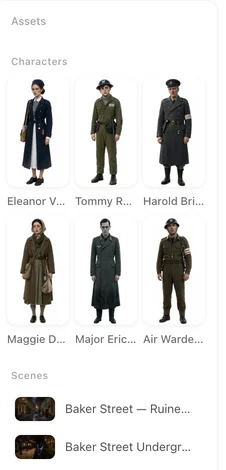
Characters, Scenes, Items: every sheet from every project, with the project name under each; open one to see it large or download it. Videos: every segment clip and assembled episode, with a download on each, plus standalone videos. Novels: the scripts you fed in, one per project. Other: uploads that are not sheets — reference images, product photos. The count on each tab is the total.
Uploaded by me
Images you uploaded here rather than inside a project. They are available to every project: when you replace a sheet or add a reference in the editor, the picker can take them. Using your own photo.
Upload asset
Upload asset or drop a file onto the page: JPG or PNG, Over 20 MB is refused, Images only. Uploading is a paid-plan perk (Uploads · custom style · AI fine-tune on the plan card); on a free account the button opens the plan window. Uploaded images can be optimised into sheets from inside a project. What a paid plan changes.
Download and delete
Every entry has Download; videos download the original-quality file. There is no delete on this page: it is for finding and downloading. Sheets, clips and episodes are deleted inside their project (delete a segment, an episode or the whole project), which keeps an episode from losing a sheet it still uses. Downloading.
The quota
Each plan has a storage quota, listed on the plan card. It counts uploads only: your photos, reference images, product shots, voice samples. Generated sheets, clips and episodes are not counted, however many you make. When the quota is full, uploads are refused with Storage is full — delete some assets or upgrade your plan; deleting the projects that hold uploads frees their space.
| Tab | Holds | Counts against quota? |
|---|---|---|
| Characters / Scenes / Items | Sheets from every project | No |
| Videos | Segment clips and assembled episodes | No |
| Novels | The scripts you fed in | No |
| Other / Uploaded by me | Your uploads | Yes |
FAQ
Is everything from every project here?
Yes. Sheets, videos and scripts from all projects, each labelled with its project.
Why can't I upload?
Uploading is part of a paid plan. The button opens the plan window on a free account.
What counts against the storage quota?
Only uploads. Generated sheets and videos never do.
Can I delete anything from here?
No. This page finds and downloads; deleting happens inside a project.
How big can an upload be?
Up to 20 MB, JPG or PNG.
Updated September 26, 2026
Pricing·Novel to Video·Guides·Samples·Support·Privacy·Terms·Legal·Contact·© 2026 SceneMixer