Using Your Own Photo

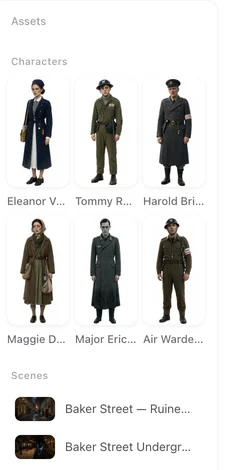
Open a finished episode and click a character: a reference sheet is a full figure on a plain background, which is what optimise produces.
Where
Step 2, click the entry, Upload & Replace. Or drag a file onto the card. JPG or PNG; other common formats are converted, SVG is not accepted, and an oversized file is refused with a message to compress it. On the current plan settings uploading is a membership feature and the button says so; photos for an ad are the exception. Paid plans.
The two choices
Optimize into a reference sheet. The dialog explains why it is the default: a reference sheet is the baseline every later shot inherits, and a snapshot brings its background, lighting and pose into the whole drama. AI reads the face, hair and clothing from your image and regenerates it together with the script’s setting — the identity details from your photo, the style and staging from the project. This is priced like an image.
Use this image as is. The photo goes on the card exactly as uploaded, marked Uploaded. Choose this for artwork already made to be a sheet: a full figure, plain background, even light. It costs nothing.
What happens next
The card shows the new image. For characters, a headshot and a half-body view are taken from it when the face is clear; when it is not, the whole photo is used. From then on, videos follow the photo: the face, skin tone and clothes come from it rather than from the description written when the script was read. Segments generated before the upload keep the old look until you regenerate them. Generate All never overwrites an uploaded image. If the photo’s proportions are unusual the card says so (Unusual aspect ratio — consider regenerating). Pressing Regenerate later replaces the upload with a generated image; upload again to go back.
Which photos work best
One person, face clearly visible and turned toward the camera, even light, nothing covering the face. A full-length photo works, but the smaller the face, the less of it the video can hold on to; a waist-up photo usually does better than a distant one. Avoid group photos, heavy filters, strong coloured light and sunglasses.
AI Describe: a description from the image
An uploaded photo has no description behind it, and the description is what the storyboard reads. AI Describe looks at the image and writes the appearance and clothing fields for you; Describe all Characters does it for every card with an image. Read the result and correct it — it is the text every later shot will trust. Writing a description.
Photos of real people
Use only images you have the right to use. A recognisable public figure or a franchise character will be refused by the IP check when you generate video. Rights · Blocks.
Scenes and props
The same button on a scene or prop card. A photo of a real place is a good scene image if it shows the space as a whole; optimise it if it has people in it or a strong time of day. Locations.
Voices
Your own voice recording goes on a character with Upload Voice, separately from the image. Character voices.
| Your image is | Choose | Cost |
|---|---|---|
| A snapshot, a selfie, a frame from a video | Optimize into a reference sheet | Priced like an image |
| Artwork made to be a sheet: full figure, plain background | Use this image as is | Free |
| A photo of a real place | As is, or optimise if people or strong light are in it | Free / priced |
| A voice recording | Upload Voice on the character | Free |
FAQ
Which option should I pick for a photo of a person?
Optimize into a reference sheet. It keeps the face and clothing and drops the background, lighting and pose that would otherwise leak into every shot.
I uploaded a photo. Why do old segments still show the previous face?
They were generated before the upload. Regenerate those segments; new ones use the photo.
Will Generate All replace my upload?
No. Uploaded images are never overwritten. Only pressing Regenerate on that card replaces it.
Does the uploaded photo need a description?
Yes, for the storyboard's sake. Press AI Describe to write one from the image, then correct it.
Why is Upload greyed out?
Uploading is a membership feature on the current plan settings; the button says so.
Can I upload a photo of a celebrity?
No. Use images you have the right to use; recognisable figures are refused at video time.
Put a face you know on a card
Upload it, optimise it, describe it, and generate a scene.
Updated October 2, 2026
Pricing·Novel to Video·Guides·Samples·Support·Privacy·Terms·Legal·Contact·© 2026 SceneMixer