When a Character Looks the Wrong Age, Ethnicity or Skin Tone

Open the character in step 2 and read the first sentence of Appearance: whatever it says about age and background is what every shot starts from.
Where the look comes from
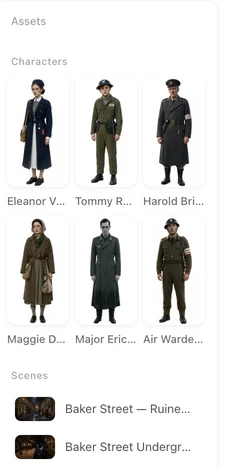
When the script is read, each character gets a written description. If the script states an age or a background, that is used; if it does not, one is chosen to fit the story, and the Target Region you set in step 1 decides where the cast is from. The sheet is drawn from that description, and every video shot of the character starts from the sheet. Target region.
Fix the sheet first
- In step 2, open the character.
- In Appearance, put the age and background first, in plain words: a Korean woman of about twenty-two, a Nigerian man in his sixties. Keep the distinctive features that follow.
- Save, then press Regenerate. Compare the new sheet with what you want before going further.
Regenerating a sheet is priced like an image, unless a free sheet covers it. Regenerate one sheet · Describe a face.
Or use a photo
On a paid plan, Upload & Replace puts your own image on the card. From then on, videos follow the photo’s face, skin tone and clothes rather than the written description. Pick a clear, front-facing photo with even light. Use your own photo.
Redo the clips
Segments generated before the fix keep the old look. Find the segments the character appears in and regenerate them; the old takes stay in Version History. Regenerate one segment.
If the sheet is right but a clip is not
When the sheet shows the right person and a clip still shows someone of another age or background, check that the shot names the character with an @ pill. If it does, do not keep regenerating: send feedback with the segment number. My character’s face changed.
The whole cast is from the wrong place
That is the target region. It is chosen before the reading and fixed afterwards; to move the whole story, start a new project with the same script and another region. For a few characters, fixing their sheets is quicker.
| Problem | Where it comes from | Fix |
|---|---|---|
| One character's age or background | Their description | Edit Appearance, regenerate the sheet |
| Want an exact face | The sheet | Upload a photo (paid plan) |
| Old clips still show the old look | Made before the fix | Regenerate those segments |
| Sheet right, clip wrong | That clip | Check the @ pill; send feedback with the segment number |
| The whole cast | Target region | New project with another region |
FAQ
Why did my character come out younger than I wrote?
Some visual styles draw people younger. State the age plainly in the first sentence of Appearance and regenerate the sheet.
I uploaded a photo and the video changed the skin tone.
Videos follow the photo. If a clip made after the upload does not, send feedback with the segment number; clips made before the upload need regenerating.
Does changing the description change existing videos?
No. Only clips generated afterwards.
Can I write the ethnicity in the script itself?
Yes. A script that states age and background gives the reading something to keep.
Fix the sheet, then the clips
Age and background first in Appearance, regenerate, then redo the segments.
Updated October 2, 2026
Pricing·Novel to Video·Guides·Samples·Support·Privacy·Terms·Legal·Contact·© 2026 SceneMixer