My Character’s Face Changed: A Checklist
Why a named character keeps her face explains the rule this checklist enforces.
1. Is she named in the shot?
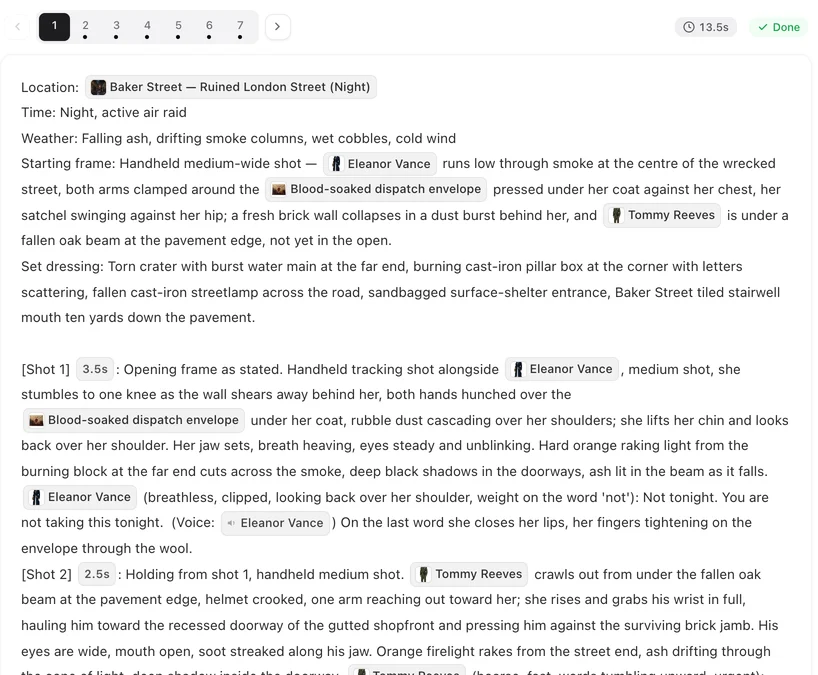
Open the segment and read the shot. The character must appear as an @ chip in the picture text — @Mara turns to the window — not as a typed name and not as “the woman”. If there is no chip, the shot had nothing to hold on to. Add it. When you wrote or edited the segment yourself, the editor also asks before generating if some shots have no linked characters. Who is in frame.
2. Is someone unseen named too?
A chip for a character who is not visible — the person she is talking to off screen, someone in the room but out of shot — invites a second face, or a swapped one. Replace the chip with a direction (she looks to frame left) or an off-screen delivery note.
3. Does she have an image?
After saving, the editor warns if a named character has no image yet. A character with no image is drawn from her description alone, which is where drift starts. Generate her image in step 2.
4. Is there a twin?
Two characters with near-identical descriptions can come out with the same face, and a shot naming one may show the other. Open both in step 2, give each a distinct anchor — a scar, glasses, a hairstyle, an age — and regenerate their images.
5. Did she change after this shot was made?
If you edited her description or replaced her image after this segment was generated, the segment still shows the old her. That is not drift; it is an old take. Regenerate it.
6. Is a state assigned?
A costume state, a transformed look or an injured version is its own image. Check which state this segment uses; a state generated from a different-looking base can read as a different person. States.
7. Is there a per-episode image?
Edit (this episode) on a character in the editor gives that episode its own image. If someone set one, this episode’s shots use it and the rest of the series does not. Check the left panel.
8. How many people are in the frame?
Four or more named characters in one shot is where faces start to blend. Split the moment into two shots with fewer people each, or frame on the ones who matter and let the rest be background people in the header.
9. Is it a different person altogether?
When the clip shows someone else entirely — another age, another face, another ethnicity — look at her sheet in step 2 first. If the sheet itself is wrong, fix the description or upload a photo, regenerate the sheet, then regenerate the segment. If the sheet is right and the shot names her with a chip, do not keep regenerating: send feedback with the segment number so support can look. When a character looks the wrong age or ethnicity.
10. Then regenerate, and only that segment
Fix the one thing you found, save, press Regenerate on that segment. The old take stays in Version History; put whichever is better into the episode. The tier does not enter into it: resolution does not fix a face. Regenerating one segment.
| Check | Where | Fix |
|---|---|---|
| Named with a chip | The shot text | Add the @ chip |
| Unseen person named | The shot text | Direction or off-screen note instead |
| No image | Warning after save; step 2 | Generate her image |
| Twin description | Step 2, both entries | Distinct anchors; regenerate images |
| Changed after the shot | Step 2 history vs the shot | Regenerate the segment |
| State in play | The segment’s state choice | Check or clear the state |
| Per-episode image | Editor, left panel | Check the override |
| Crowded frame | The shot text | Fewer named people per shot |
| A different person altogether | The sheet in step 2 | Fix the sheet; if it is right, send feedback |
FAQ
Will a higher video tier fix the face?
No. Resolution does not change who is drawn. The shot text and the character's entry do.
Only one shot is wrong. Do I redo the episode?
No. Fix that shot's text and regenerate that segment. The rest is untouched.
Two characters look alike.
Their descriptions are too similar. Give each a distinct feature and regenerate both images.
The face is right but the clothes are wrong.
That is a state question, not a face question: assign the right state to the segment.
I fixed it and it is still wrong.
Regenerate once more; a single take can miss. If it misses repeatedly, reduce the number of people in the shot.
Ten checks, one regeneration
Find the cause in the text, fix it, and regenerate just that segment.
Updated October 2, 2026
Pricing·Novel to Video·Guides·Samples·Support·Privacy·Terms·Legal·Contact·© 2026 SceneMixer