Regenerate One Sheet, and Write a Description That Changes It

Open a finished episode and click a character in the left panel to read a description that produced a usable sheet.
Opening the card
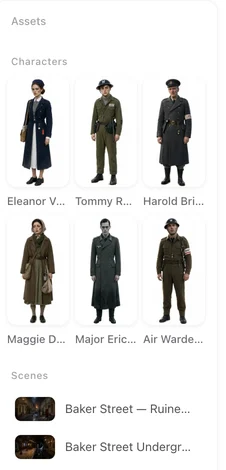
In step 2, click the entry. The details show Name, Role, Appearance (the description), Clothing, the image with Regenerate, Upload & Replace and AI Edit Image, and for characters the voice. Scenes and props have a description instead of appearance and clothing.
What to write in Appearance
What a camera would see, in order: face shape, skin, eyes and brows, nose and mouth, hair colour and cut, age, height and build, and one thing that makes this person recognisable at a glance — a scar, glasses, a streak of grey, a gap in the teeth. Concrete beats pretty: “square jaw, heavy brows, cropped grey hair, sixty, broad” gives the image something to draw; “handsome and imposing” gives it nothing.
Leave out mood and backstory. Leave out what the character is doing. Those belong in the storyboard, not on the sheet.
What to write in Clothing
One outfit: the pieces, the cut, the colours, the materials, the accessories. “Charcoal wool overcoat over a white shirt, no tie, black boots, a steel watch.” If the story dresses her differently later, do not put both outfits here; the sheet would try to show both. Give the second outfit a state instead. States.
If the field reads Appearance generated, but clothing was not detected — please fill it in, do: a character with no clothing line is dressed at random.
Scenes and props
A scene description names what is in the place and what it is made of: the room’s shape, the furniture that matters, the floor and walls, the windows, where the light comes from. No people. A prop description names the object’s shape, size, material, colour and markings, and nothing about who holds it. Locations · Props.
Save, then Regenerate
Save stores the text. The card now says Text edited — image is from before: the image still follows the old text until you press Regenerate. Regenerating replaces the image on the card; the headshot and half-body crops are cut again from the new one. If the new image is worse, regenerate again — each try is a fresh draw from the same text, and the price is on the button.
What happens to states
State images made from the old main image are marked Main image changed — regenerate. They keep working until you do, but they will not match the new face. Regenerate them after you are happy with the main image, not before.
Two other ways to change an image
AI Edit Image keeps the same character and applies a short change you describe — a navy shirt, short curly hair, a smile — without rewriting the description. AI edits. Upload & Replace puts your own image on the card. Using your own photo.
| Field | Write | Do not write |
|---|---|---|
| Appearance | Face, hair, eyes, age, build, one recognisable mark | Mood, backstory, actions, “beautiful” |
| Clothing | One outfit: pieces, cut, colours, materials, accessories | A second outfit (make a state) |
| Scene description | Space, furniture, materials, windows, light source | People, events |
| Prop description | Shape, size, material, colour, markings | Who holds it, what it does in the plot |
FAQ
I changed the description but the image is the same.
Saving stores the text; the image changes only when you press Regenerate. The card says so until you do.
Does regenerating cost credits?
It is priced like any image, on the button. The free allowance covers it while it lasts.
Can I keep the old image?
Regenerating replaces the image on the card. If you may want the old one back, download it first.
Why did my character come out in the wrong clothes?
Either the Clothing field is empty, or it describes two outfits. Write one; give the other a state.
What is the stale notice on my states?
The main image changed, so states made from the old one no longer match. Regenerate them once the main image is right.
Updated October 2, 2026
Pricing·Novel to Video·Guides·Samples·Support·Privacy·Terms·Legal·Contact·© 2026 SceneMixer