Generating an Episode’s Storyboard

Open a finished episode to see what a storyboard looks like once it has been generated and shot.
The episode cards
Each card carries the episode number and title, a thumbnail once there is video, and how many characters, scenes and segments it has. Under the list, Segment length chooses between Standard 15s and Long take 30s for episodes you parse from now on. Segment length.
Parse Storyboard
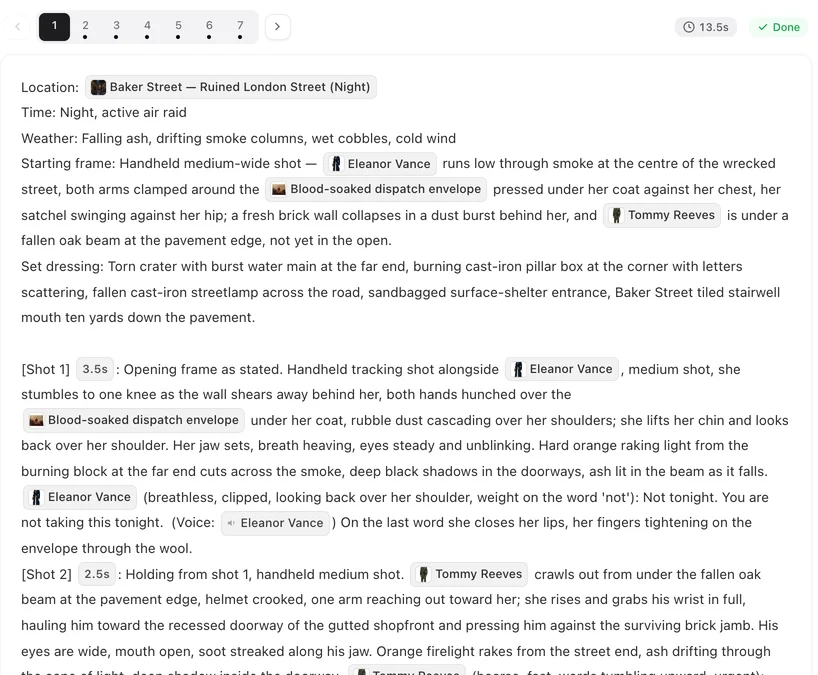
The button on a card that has no storyboard yet. Press it and the episode’s outline — the summary the reading wrote in step 1 — becomes a storyboard: the episode cut into segments, each segment a header plus three to five numbered shots with their seconds, the characters and props as @ chips, the lines with voice tags. It is the document you will edit and shoot. What a storyboard contains.
Before it can run, the cast should have images and the episode must be ready. A long script keeps preparing its later episodes after the reading; a card that says Preparing is not ready yet, and the button tells you to try again in a moment.
What it costs
Storyboards are billed by the length of the episode’s script: 1 credit per 333 characters of English, shown on the button. First and repeat generations cost the same. The first 1 episode of your first drama is free — the card says Free — so you can see a storyboard before paying for one. Where credits go.
While it runs
The card says Parsing, then Refining shots as the storyboard is checked and tidied. Show process opens a live view; Hide closes it. It takes a few minutes. You can parse other episodes meanwhile, or leave; it lands on its own. If your interface language differs from the project’s production language, the card then shows Translating N/M while the storyboard is put into your language; you can open it before that finishes.
When it lands
Edit opens the episode editor with the storyboard in the middle pane and every segment on the timeline, ready to generate. The editor. Read it before you shoot: a wrong name or a missing seconds value is a free edit now and a paid regeneration later.
If it fails
The card says Storyboard parsing failed with the reason, and offers Retry. Credits for a failed storyboard are not charged. Failures.
Re-parse
Once an episode has a storyboard, the button becomes Re-parse. It rewrites the whole episode from the outline and discards its segments and videos — a confirmation says so. Use it when the breakdown is wrong throughout; when one shot is wrong, edit that shot. What re-parsing loses.
| Card says | Means | Do |
|---|---|---|
| Parse Storyboard | No storyboard yet | Press it (first episode of a first drama: Free) |
| Preparing | Episode not ready yet (long script) | Wait a moment |
| Parsing / Refining shots | Running | Wait, or Show process |
| Translating N/M | Putting the storyboard into your language | Open it, or wait |
| Edit | Storyboard ready | Open the editor |
| Re-parse | Storyboard exists | Only to rewrite the whole episode |
FAQ
How much does a storyboard cost?
It is billed by the episode's script length; the price is on the button. The first episode of your first drama is free.
Do I have to generate images before the storyboard?
The storyboard does not need them, but the video does. Give the cast images before you shoot.
Can I parse several episodes at once?
Yes. Press Parse Storyboard on each; they run alongside each other.
The card says Preparing.
A long script readies its later episodes in the background. Try again in a moment.
What is the difference between Parse Storyboard and Re-parse?
Parse Storyboard writes the first storyboard. Re-parse rewrites it and discards that episode's segments and videos.
Parse your first episode for free
See what a storyboard looks like before you pay for a second one.
Updated September 26, 2026
Pricing·Novel to Video·Guides·Samples·Support·Privacy·Terms·Legal·Contact·© 2026 SceneMixer