Editing the Storyboard: What You Can Change, and What You Can’t

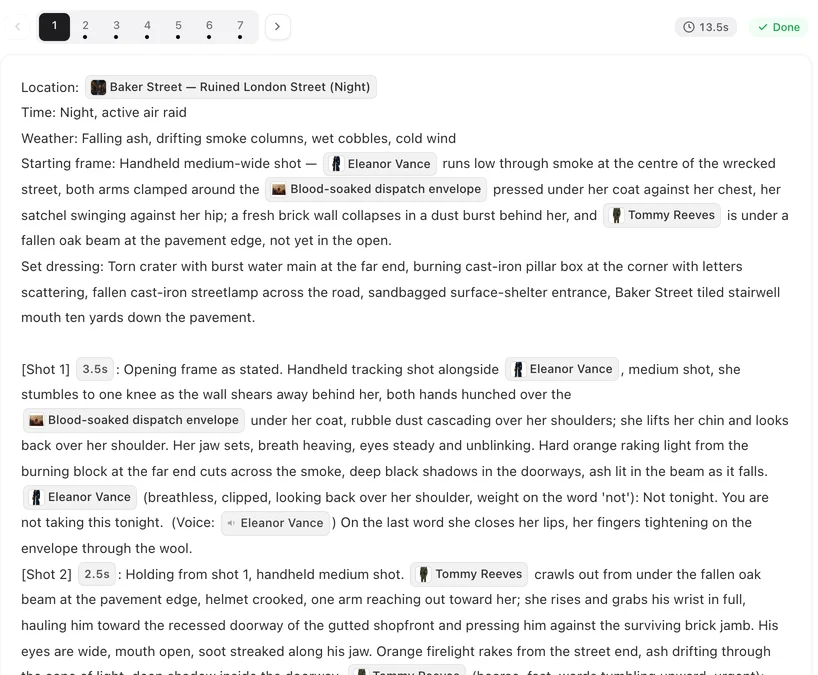
Open a finished episode and click into a segment. The storyboard in the middle pane is exactly what you would be editing.
Opening the editor
In an episode, click a segment on the bottom timeline. The middle pane shows its storyboard: a short header (where, when, weather, what is on set), then the shots, numbered, each with its seconds. Click Edit Script above the text to start editing. On a phone you can read and generate, but detailed storyboard editing is a desktop job.
What the chips are
In an English interface the structural labels appear as small grey chips: Location, Time, Weather, Set dressing, Props, Opening, the shot markers [Shot 1] 4s, and inside a shot things like In frame only, lips closed, Ambient and No dialogue. Character, scene and prop names are chips too, and so is the voice tag after a line of dialogue.
A chip is one unit. You can put the cursor before or after it, delete it, or cut and paste it. You cannot edit the letters inside it. To add a name, a voice tag or a shot duration, use the @ menu — how the @ menu works. If you delete a chip by mistake, Discard puts the segment back the way it was before you started.
What you can change
Everything that is not a chip. Who does what, the framing, the camera move, the light, the dialogue and how it is delivered, the seconds of each shot (through the chip menu), which characters are in the picture, the header fields. You can add a shot, remove a shot, or split one into two.
Keep two habits. Name every character who is in the picture with an @ chip, so the shot knows who to draw — who is in frame. And keep the shot seconds honest, because they add up to the length of the segment — shot seconds.
What a save does
Save stores the text. It costs nothing, calls no model, and only the shots you actually changed are re-read. Three warnings can appear afterwards, none of them fatal: a name that is not a character, scene or item in this project (no image will be attached for it); a character who has no image yet; a line of dialogue with no voice tag. Fix them or not, as you like.
The video on the right does not change when you save. It is the video of the old text. Regenerate the segment to get one from the new text; every version is kept. If you click another segment with unsaved changes, you are asked whether to save first — Save & Switch does both.
Three saves that are refused
The script is too long. Trim it. The header could not be reattached safely. The save is cancelled so the script is not corrupted; your draft is kept — copy it, close the editor, reopen and paste. The header does not match the segment being edited. The segment changed under you; close the editor and reopen it. In all three cases nothing is charged and nothing is lost.
The one button that rewrites everything
Regenerate on a segment remakes that segment’s video and keeps the old one. Regenerating the storyboard of an episode is a different thing: it rewrites every segment’s text and drops the videos with them. Which button does what.
| Action | Cost | What it touches |
|---|---|---|
| Edit any sentence and save | Free | The text of one segment |
| Delete or move a chip | Free | The structure of one segment |
| Add a name, voice tag or seconds via @ | Free | One shot |
| Regenerate the segment | That segment’s duration | One segment’s video (old version kept) |
| Regenerate the episode storyboard | One storyboard fee | Every segment and its videos |
FAQ
Does editing the storyboard cost credits?
No. Editing and saving are free and call no model. Only generating video is charged.
Why can't I type inside a chip?
Chips are the fixed structure of the script. Move or delete them; add new ones from the @ menu.
I saved, but the video looks the same.
Saving changes the text, not the video. Regenerate the segment to get a video from the new text.
The save was cancelled with a message about the header.
Copy your draft, close the editor, reopen the segment and paste. Nothing was charged.
Can I write in my own language?
Yes. The interface labels follow your language, and the storyboard text is shown in the project's display language. Write in the language you are reading.
Change one line and see what moves
Editing is free. Open an episode, rewrite a shot, save, and regenerate just that segment.
Updated September 26, 2026
Pricing·Novel to Video·Guides·Samples·Support·Privacy·Terms·Legal·Contact·© 2026 SceneMixer