The Episode Editor: A Tour

Open a finished episode: this is the editor with every segment done.
Getting in
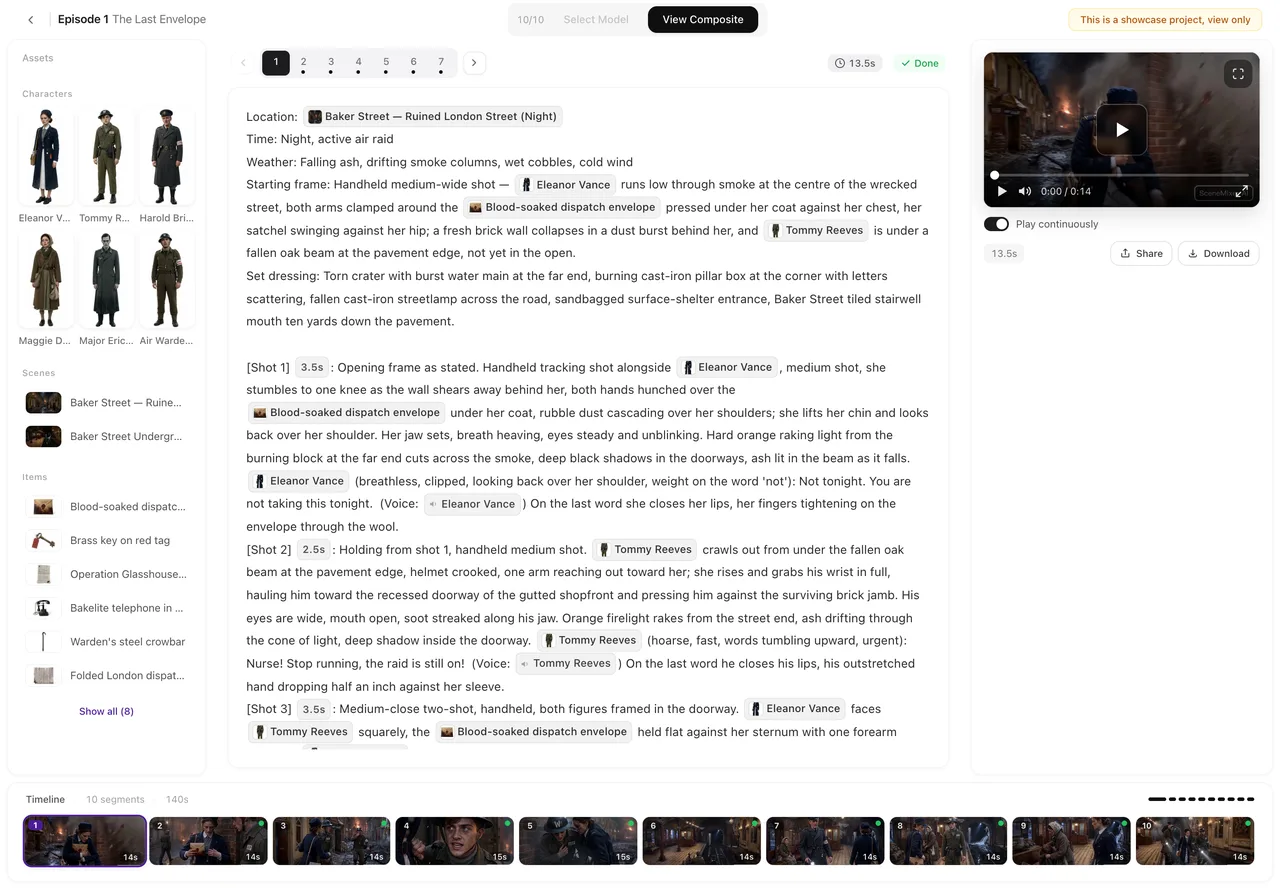
From step 3, press Edit on an episode that has a storyboard (an episode without one asks you to parse it first). The top bar has ← Back to episodes, the episode title, your credit balance and the model picker.
Left: the asset panel
The characters, scenes and items this episode draws on, as thumbnails, in three groups. Click one for its details; Edit (this episode) changes its image for this episode only. Add assets brings in an entry from the project or the library. Collapse folds the panel away. Adding assets.
Middle: the storyboard
The text of the segment selected on the timeline: the header, then the shots. Edit Script turns it editable; Save and Discard appear while you edit; type @ for the reference menu. Warnings after a save show here. Editing.
Right: the preview
The video of the selected segment, or the state it is in. Above it, the model picker (Select Model) and the AI badge pill (AI Badge / No Badge). The Generate Video button with its price; after generation, Regenerate, Version History, download, share and full screen. Generating · Tiers · Badge.
Bottom: the timeline
One card per segment, in order, with thumbnail, length, status and price tag. Click a card to select it. Cards carry Insert segment after and Delete segment. At the end, Composite Episode, available when every segment is done, and Composite History. Every icon on a card.
On a phone
The three panes become three tabs — Assets, Script, Preview — with the timeline under them. You can read the storyboard, generate segments, switch versions, download and share, and change the model or the badge from the model sheet. The editor says it plainly: viewing and generating work on mobile; for detailed storyboard editing, use a desktop.
Ads
An ad in advanced mode opens the same editor with ad wording: shots instead of episodes, Product & props instead of items, Assemble ad instead of composite, and an end card step before assembling. Advanced mode.
| Pane | Holds | Main controls |
|---|---|---|
| Left | This episode’s characters, scenes, items | Add assets, Edit (this episode), Collapse |
| Middle | The selected segment’s storyboard | Edit Script, Save, Discard, @ |
| Right | The segment’s video or status | Generate Video, model picker, badge pill, Version History, download, share |
| Bottom | Every segment, in order | Select, Insert segment after, Delete segment, Composite Episode |
FAQ
Where is the generate button?
In the right pane, under the preview, with the price on it.
Where do I change the video quality?
The model picker above the preview: Select Model.
Can I edit the storyboard on my phone?
You can view it and generate video. Detailed editing is meant for a desktop, as the editor itself says.
How do I go back to the episode list?
Back to episodes in the top bar.
Where are old versions of a segment?
Version History in the right pane, once a segment has more than one take.
Walk the three panes
Select a segment, read it, generate it, and watch it land on the right.
Updated September 26, 2026
Pricing·Novel to Video·Guides·Samples·Support·Privacy·Terms·Legal·Contact·© 2026 SceneMixer