I Already Have Reference Images for My Characters: What Changes When I Upload Them

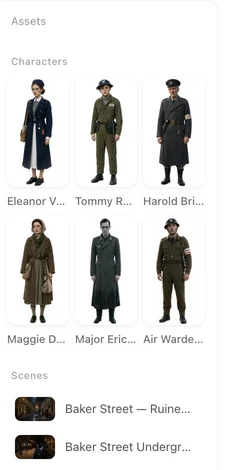
Open any character card in Step 2 and look for Upload next to Regenerate; the current sheet stays until the upload finishes.
How to replace a sheet
In Step 2, open the card and choose Upload. JPEG or PNG, a sensible shape (roughly 9:16 for a person, 16:9 for a place or a prop; very tall or very wide images are refused later at generation). The new image replaces the sheet and its thumbnails everywhere the character appears. Uploading is a paid-plan feature; the details and the alternatives: Use Your Own Photo for a Character or Scene.
What changes and what does not
Changes: the reference the video model looks at for that character in every segment generated from now on; the card, the panel thumbnails, the face crop used in the editor. Does not change: the description (appearance, clothing, voice) — the storyboard and the shot text still read it; clips already generated; other characters. Goes stale: state images (costume changes and the like) that were generated from the old sheet count as out of date and fall back to text until you regenerate them.
Bring the description in line
The video is built from two things: the image, and the words. If your image shows a blonde woman in a leather jacket and the description still says a brunette in a coat, the shot text will describe the coat and the model will argue with itself. Edit the appearance and clothing fields to match the picture; keep the identifying features you want kept (a scar, glasses). Write a Description That Works.
Preparing an image that works as a sheet
A generated sheet is a neutral reference on purpose: full body, plain background, even light, no mood. Your image should be the same kind of thing. Crowded backgrounds, heavy filters, dramatic lighting and other people in frame all leak into every shot that uses it. Real people need permission — your own face is fine, a stranger’s is not: Content Rules and Moderation.
Using the same image across projects
An uploaded sheet lives in the project. To reuse it elsewhere, open the matching card in the other project and copy the picture from the asset library; the image (and voice) are copied, not the description, so write that card’s description to match. Reuse a Character, Scene or Voice Across Projects.
| After you upload | Generated sheet | Your image |
|---|---|---|
| New segments look at | — | Your image |
| Description | Kept | Kept — edit it to match |
| Existing clips | Unchanged | Unchanged |
| State images from the old sheet | — | Out of date until regenerated |
| Thumbnails and face crop | — | Refreshed |
FAQ
Do I need a plan to upload?
Yes, uploading a replacement is a paid-plan feature; the free path is to edit the description and regenerate.
Will the face be exactly my image?
The model treats it as a strong reference; likeness is good but not a copy, and lighting and angle follow the shot.
Can I upload several angles?
One sheet per character. Use states for a second look (a costume) rather than a second angle.
My upload was accepted but the video failed with 'invalid input'.
The image's shape or size is outside what the video tier accepts. Crop closer to 9:16 and re-upload.
Does the upload count against my free sheets?
No. Free sheets count generations; an upload is not one.
Upload, then fix the words
The picture is half the reference; the description is the other half.
Updated September 27, 2026
Pricing·Novel to Video·Guides·Samples·Support·Privacy·Terms·Legal·Contact·© 2026 SceneMixer