Generating a Segment: What Happens When You Press the Button
Open a finished episode and click a segment. The preview pane on the right is where the button lives.
Before you press it
Two things decide whether the shot will come out well: the storyboard text and the images. Read the segment once — is everyone visible named with a chip, do the shots have their seconds, does every line have a voice tag? Editing the storyboard. If a character or scene in the segment has no image yet, the editor warns you that the generation will lack it; generate the image in step 2 first.
The button and the price
Generate Video sits in the preview pane on the right, with the price on it. The price is the segment’s seconds times the per-second rate of the tier in the picker beside it. Change the tier, or the seconds, and the price changes with them. Choosing a tier.
The confirmation dialog
Pressing the button opens Generation Preview. It lists the reference images the shot will use — the characters, the scene, the props named in the text — and the reference audio for the voices, so you can see at a glance whether the right people and things are attached. Below is the exact text that will be used, visible only to you. At the bottom: N credits will be deducted and Confirm Generate. Nothing has been charged yet; Cancel closes it.
While it runs
The credits are held, not yet spent. The timeline card turns Generating and the preview pane says roughly how long it usually takes — typically ten to twenty minutes, depending on the tier and the queue. Queued, starting shortly means it is waiting its turn. You can edit other segments, generate others (there is a limit to how many run at once; paid plans raise it), or close the tab and come back; the clip lands whether or not you are watching. If it says taking longer than usual, still running, it is still running. Why a generation takes time.
A clip cannot be stopped once you press generate; it lands as a new version you can keep or ignore. What can be stopped.
When it is done
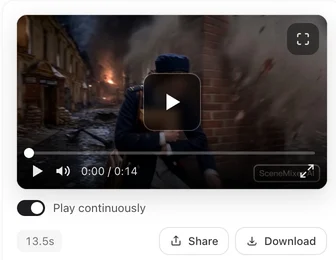
The clip appears in the preview pane with play, download and share controls, and the card shows its thumbnail. Only now are the credits charged. If the result is wrong, edit the text and press Regenerate; the old version is kept in Version History. If it failed, the card says so and the message tells you whether the credits came back. When a generation fails.
The free preview
Every account gets one free preview: about 5 seconds of the opening shot of an episode, generated from your own characters and script, at no cost — no credits held or charged. The offer appears in the editor toolbar as Generate a free preview; it takes a few minutes and shows up in the toolbar when ready. One per account, on whichever project you like.
Not enough credits
If the segment costs more than you have, an Insufficient Credits dialog shows what the action requires, your balance, and the shortfall, with Buy Credits and Upgrade. Nothing is generated until you have the credits. Buying credits.
| Moment | What you see | Your credits |
|---|---|---|
| Before pressing | Price on the button | Untouched |
| Confirmation dialog | References, audio, text, credits to deduct | Untouched |
| Generating | Card says Generating; time estimate | Held |
| Done | Clip in the preview pane | Charged |
| Failed | Card says Failed; message explains | Returned, or on hold for review — the message says which |
FAQ
When are the credits actually taken?
They are held when you confirm and charged when the segment is delivered. A failure returns them unless the message says they are on hold for review.
Can I close the page while it generates?
Yes. The clip lands whether or not you are watching. Open the episode later and it is there.
How long does one segment take?
Usually ten to twenty minutes, depending on the tier and how busy the queue is. The preview pane shows the usual time.
What is the free preview?
One short opening shot per account, from your own script, at no cost. Look for Generate a free preview in the editor toolbar.
Why does the dialog show images I did not expect?
It lists the entries named in the segment's text. If the wrong ones are there, fix the chips in the storyboard before confirming.
Generate your first segment
Or start with the free preview and see your own opening shot before spending a credit.
Updated September 27, 2026
Pricing·Novel to Video·Guides·Samples·Support·Privacy·Terms·Legal·Contact·© 2026 SceneMixer