Reading Step 2: Tabs, Badges and Why Scenes Are Wide

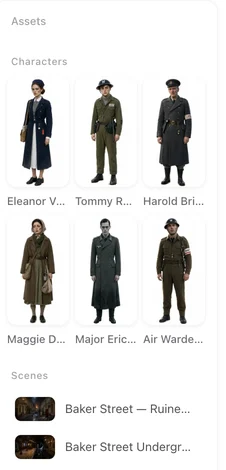
Open a finished episode and look at the left panel: it is the same three lists, filtered to that episode.
The three tabs
Characters: everyone the reading put in the cast, leads and bit parts alike. Scenes: every place the story happens in. Items: the props the story depends on. Switching tabs changes the grid and the Generate All button above it, which always applies to the tab you are on. Generate All.
Badges on a card
Lead / Supporting / Villain: the role the reading assigned. It is a label, not a setting; edit it in the card’s details if it is wrong. Off-screen: a voice-only part — a narrator, a caller — that gets a voice but no image (Voice only — no image generated). Pending: no image yet. Generating: on its way. Failed — click to retry. Uploaded: your own image; generation never overwrites it. State: a card with a dashed border is a state of another entry, not an entry of its own. States.
The progress line
Above the grid, a line counts the batch: Characters generating — 12/20 done. Another shows the free allowance: N/15 free character, scene and prop images left, counted across the account. When something in the tab has no image yet, a hint says how many and offers to generate or upload.
Why the shapes differ
Character images are tall: a full-body sheet on a plain background, made to be seen at every distance. Scene and item images are wide: a place seen as a whole, an object seen clearly. Neither follows the video’s aspect ratio, and changing the ratio never regenerates them. Aspect ratio.
A character card also carries two automatic crops once the image exists: Headshot and Half body. You do not make them; they are cut from the full-body image.
Opening a card
Click a card for its details: the name, the description (appearance, clothing), the image with Regenerate, Upload & Replace and AI Edit Image, the role, and for characters the voice. Edit any of it and Save. Regenerating one sheet.
Adding an entry
The Add button on each tab creates an entry the reading did not: name it, describe it, Create, then generate or upload its image. Members can also pick an existing entry from the asset library. Reusing entries across projects.
Leaving step 2
You do not have to finish. Next works with images still generating or missing; a dialog counts how many have no image yet and offers Generate all or Skip & continue. Entries without an image are drawn from their description alone, which is where faces drift, so give the cast its images before you generate video.
| Badge | Means | Do |
|---|---|---|
| Lead / Supporting / Villain | Role assigned by the reading | Edit in details if wrong |
| Off-screen | Voice-only part, no image | Nothing; give it a voice |
| Pending | No image yet | Generate, or Generate All |
| Generating | Image on its way | Wait |
| Failed | Generation failed | Click to retry |
| Uploaded | Your own image | Nothing; it is never overwritten |
| State (dashed card) | A state of another entry | Open to assign or generate |
FAQ
Why are my scene images wide when my video is vertical?
Scene and item images describe a place or object, not a frame. They are always wide; character images are always tall.
What does Off-screen mean on a character?
A voice-only part. It gets a voice but no image is generated for it.
Do I have to generate every image before moving on?
No. Next offers to generate the missing ones or skip. Give the cast images before generating video, though.
What are Headshot and Half body?
Automatic crops from the character's full-body image. You do not make them.
Can I change a character's role badge?
Yes. It is a label; edit it in the card's details.
Open the three tabs on your own script
Upload a script and see who and what the reading found.
Updated September 26, 2026
Pricing·Novel to Video·Guides·Samples·Support·Privacy·Terms·Legal·Contact·© 2026 SceneMixer