A Stranger Plays My Character, or a Voice-Over Got a Face

Open step 2 of a project, click a character card, then Edit: the Appears as row is under the name. A card that says Off-screen and Voice only — no image generated is a voice-only character.
Two symptoms, one setting
| What you see | Likely cause | Fix |
|---|---|---|
| A character the story clearly shows is played by someone else, a different face in every clip | The character is set to Voice only, or is On screen but has no image yet | Set On screen, generate their image, regenerate the segments |
| A narrator, a voice on the phone or an announcer appears in the picture | The character is On screen, or their lines lack an off-screen note | Set Voice only (off-screen); write their lines with (voice-over) or (off-screen); regenerate |
| The editor says In this segment but no character image yet: … | A character in the picture has no image | Press Generate images, make the image in step 2, then generate the segment |
If the face is the right person but drifts from shot to shot, that is a different problem: My character’s face changed: a ten-point checklist.
How the reading decides, and how it gets it wrong
When your script is read, everyone with an action or a line becomes a character card. Someone who only ever speaks and is never seen — a narrator, the other end of a phone call, a voice on the radio — is marked off-screen: the card shows Off-screen and Voice only — no image generated, Generate All skips them, and their face is never used.
The guess can go wrong. A typical case: a main character who does not appear in the first episodes’ text, or who is only introduced in a character list at the end of the script, can be read as a voice. Then, when a later storyboard puts them in the picture, the video has nothing to draw them from and invents a face.
Two safety nets help. If you never touched the setting and a generated storyboard clearly shows the character in the picture, the setting is switched to On screen for you. And the editor warns you, segment by segment, when someone in the picture has no image (below). A choice you make yourself is kept as you made it.
Change it: On screen or Voice only
- Open step 2 of the project and the Characters tab.
- Click the character’s card, then Edit. The edit dialog opens.
- Find Appears as, under the name. Two buttons: On screen and Voice only (off-screen). Until you change it, it shows what the reading decided.
- Pick one. The line under the buttons says what it means:
- On screen: “When this character appears on screen, the video uses their character image.”
- Voice only (off-screen): “Heard but never seen (narrator, voice on the phone): no image is generated automatically and their face is never used in videos.”
- Press Save. Changing the setting costs nothing.
Only characters have this setting; scenes and items do not.
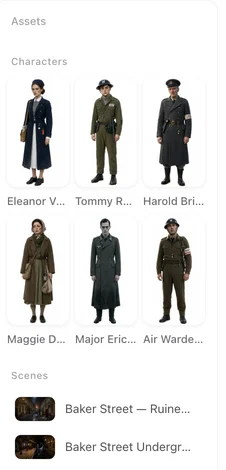
After you switch to On screen
- Give them an image. Generate it from the card, or with Generate All on the Characters tab, which now includes them. Images are priced on the button; the first 15 setup images on an account are free. Generate All in step 2.
- Check the description describes how they look, not only how they sound; the image is drawn from it. Describe a face so it is not a generic face.
- Name them in the picture. In the storyboard, a visible character is an @ chip in the shot text. Who is in frame.
- Regenerate the segments they are in. Clips already made keep the stranger’s face; a new generation uses the image. Each regeneration is charged as usual; the old take stays in Version History.
After you switch to Voice only
- No image is made for them, and Generate All skips them. An image they already have stays on the card but is not used in videos.
- Their face is never used. In storyboards written before you switched that still name them in the picture, they are treated as off-screen when a video is generated. The storyboard text you see does not change.
- Their voice still works. Keep a voice for them, and write their lines as off-screen: start the delivery note with (voice-over) or (off-screen), keep the voice chip, and do not put their @ chip in the picture text.
- Regenerate any segment where they were drawn in.
| Line | How to write it |
|---|---|
| A narrator | @Narrator (voice-over): She never told anyone what was in the letter. (voice: 🔊Narrator) |
| A voice on the phone | @Dad (off-screen, through the phone, tired): Come home, kiddo. (voice: 🔊Dad) |
Leads, supporting cast and voice-only characters · Lines, voice-over and captions.
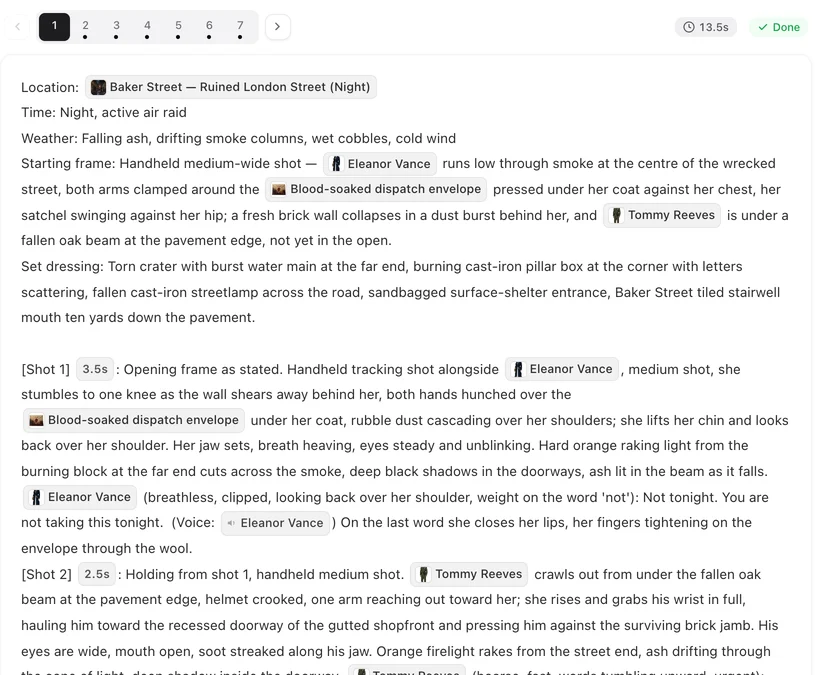
The warning: in this segment but no character image yet
Since October 2026 the editor tells you before a face goes wrong. Above a segment whose picture names a character who has no image, a line reads:
In this segment but no character image yet: {names}. The video can only go by the text description, so the face won’t match the character.
with a Generate images button that takes you to step 2, where the character’s image is made (priced on the button, free while your free images last). When you press Generate all in the editor, the confirmation says the same for the whole batch: In these segments but no character image yet: {names}. The faces in the videos won’t match these characters.
It is a warning, not a block: you can still generate. The usual reasons a character has no image:
- The reading marked them Voice only, so Generate All skipped them, and later they were put in the picture.
- They arrived with new episodes added to the project after the images were made.
- Their image failed and was not retried.
Once the image exists, the warning disappears on its own.
Fixing a project where it already happened
- Watch the episode and note every segment where the wrong face appears.
- In step 2, set the character to On screen and generate the image. Check the image before going on.
- In the editor, open one of those segments: the shot text should name the character with an @ chip. If it names someone else or no one, fix the text. Shots with no linked characters.
- Regenerate that one segment and check the face before regenerating the rest.
- Regenerate the others, then composite again. Old takes stay in Version History.
| Setting | Image | Generate All | Face in videos | Voice |
|---|---|---|---|---|
| On screen | Needed; generated like any character | Included | Used whenever the character is in the picture | Yes |
| Voice only (off-screen) | Not generated automatically | Skipped | Never used | Yes |
FAQ
Why is my main character played by a stranger?
Most often the character is set to Voice only, or is On screen but has no image yet. Without an image the video can only follow the text and invents a face. Set On screen in step 2, generate the image and regenerate the segment.
Where is the On screen / Voice only setting?
Step 2, Characters tab: click the character, press Edit, and look for Appears as under the name. Pick On screen or Voice only (off-screen) and press Save.
Does changing it cost anything?
No. Changing the setting is free. Generating an image for the character and regenerating segments are charged as usual.
Will the clips I already made change?
No. A finished clip keeps whatever face it was made with. Regenerate the segments the character appears in; the old takes stay in Version History.
My narrator keeps appearing in the picture. What do I do?
Set the narrator to Voice only (off-screen), write their lines with (voice-over) at the start of the delivery note, keep the voice chip, and leave their @ chip out of the picture text. Then regenerate the segment.
Does a voice-only character still have a voice?
Yes. Voice only means heard but never seen. Match or pick a voice for them in step 2 like any other character.
Can I generate a video while the no-image warning is showing?
Yes. It is a warning, not a block, but the face of that character will not match. Generating the image first is the fix.
Why did the setting change by itself?
If you never set it yourself and a generated storyboard clearly shows the character in the picture, the setting is switched to On screen. A setting you chose yourself stays as you chose it.
Can a scene or a prop be voice only?
No. Only characters have the Appears as setting.
The right face, every time they are seen
Open step 2, check Appears as on your leads, and give everyone who is seen an image before you generate.
Updated October 13, 2026
Pricing·Novel to Video·Guides·Samples·Support·Privacy·Terms·Legal·Contact·Affiliate program·© 2026 SceneMixer