Enhance Clarity: Make a Finished Clip Sharper, One Step Up

Open any episode with a finished segment, click the segment, and under the player choose Edit this clip → Enhance. Reading the tab is free; nothing is charged until you press the button.
Where the Enhance tab is
On a computer: open the episode editor and click a segment on the timeline. The right-hand pane holds the player; directly under it sits Edit this clip with four tabs: AI visuals, Redub, Trim and Enhance. The panel opens on Trim; click Enhance.
On a phone: tap the segment to open its preview; the same four tabs are in the sheet under the player.
The tabs appear once the segment has a finished clip. Before that the panel says Generate this clip first, then edit it here., and while the clip is still being made, Wait for this clip to finish, then edit it. Edit this clip: which fix to use.
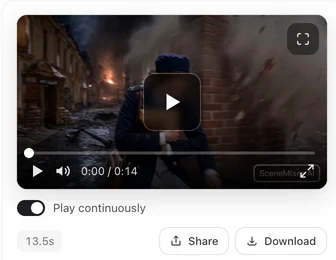
What the tab shows
Top to bottom, the tab is short:
- The step. One line such as Now 480P → enhance to 720P. If the version you are looking at was itself enhanced, the line reads Original 480P → enhance to 720P, above a note like This version was enhanced to 720P with AI Detail.
- Three cards side by side. Each has the option’s name, the price for this segment with the ✦ mark, and an estimate such as about 3 min. A card that cannot take this clip is greyed with a short reason under it.
- One sentence about the selected option, under the cards.
- The button: Enhance to 720P · ✦ N, with the target resolution and the price of the selected card.
- Notes under the button, only when they apply: Enhancing again replaces the previous enhanced version. and, when the step is to 2K, Full-episode exports top out at 1080P.
The three options
| Option | What it does | Faces | Wait |
|---|---|---|---|
| Instant HD | “Quickest — a sharper picture without redrawing anything.” Edges and fine lines get crisper at the higher resolution. | Unchanged: nothing is redrawn | The shortest |
| AI Detail | “AI redraws fine detail; faces may change slightly.” Skin, hair, fabric and small textures are filled in rather than stretched. | Can shift a little; check the close-ups | Several minutes for a typical segment |
| Cinema Restore | “Most thorough restoration — cleans up noise and blur; takes the longest.” For a clip that looks grainy, smeared or soft. | Kept; noise and blur are cleaned around them | The longest |
The exact wait for your segment is on each card. How to choose:
- Posting to a phone feed, the clip already looks right: Instant HD. It is the safe default and the one selected for you when it is the cheapest available.
- The clip looks soft or plasticky at 480P and you want texture: AI Detail. Watch the faces in close-ups afterwards; if a face moved too far from the character, switch back to the original version.
- A hero shot, a noisy night scene, a clip with motion blur you want cleaned: Cinema Restore.
Compare the three prices on the cards before you press: the card you have selected is exactly what is charged.
Enhance a segment, step by step
- Pick the segment on the timeline and make sure the version you want is the active one (it is the one playing in the player).
- Open Edit this clip → Enhance and read the step line: Now 480P → enhance to 720P.
- Choose a card. The cheapest option that can take this clip is already selected; click another card to switch. Its one-line description appears under the cards.
- Press Enhance to 720P · ✦ N. The credits are held, not yet spent.
- Wait or leave. The panel says Enhancing clarity… with a progress bar sized to the estimate on the card. You can work on other segments or close the page; it keeps running.
- Done: Enhanced and saved as a new version. If the version you enhanced was still the active one, the enhanced version becomes active and plays straight away. If you switched to another version in the meantime, the new one waits in Version History; press Use on it when you want it.
One step up, always from the original
The step is worked out from the clip’s original resolution: 480P goes to 720P, 720P to 1080P, 1080P to 2K. A clip of an unusual size goes to the next standard step above it. There is no menu to pick a bigger jump.
Enhancing an enhanced version again does not stack. The tab says Original 480P → enhance to 720P, works from the original again, and the new result replaces the earlier enhanced version — useful for trying AI Detail after Instant HD, not for climbing from 480P to 1080P. To end at 1080P from a 480P clip, regenerate the segment on a 1080P tier, or regenerate it at 720P and enhance that to 1080P. Enhance or regenerate at a higher tier.
A clip that is already 2K shows This clip is already at the highest resolution (2K). and there is nothing to enhance.
What it costs, and when it is charged
Enhance is priced per second of the clip, at a rate that depends on the option and on the resolution you are going to; the segment’s length is rounded up to whole seconds. The number on the card and on the button is the full price for this segment — there is nothing else to add. There is no free allowance, and it is open to every account, not only members.
- On pressing: the credits are held.
- When the enhanced version is delivered: they are charged. Your credit history shows one line, Enhance clarity · AI Detail (or the option you chose).
- If it fails: see the last section — most failures refund automatically.
- If the price or the active version changed since you opened the tab (another tab or device switched versions), nothing is charged; the tab refreshes so you can look again and press once more.
Compare it with the alternative before you press: regenerating the same segment at Wan 3.0 · 720P costs 19 credits a second, and the price is on the Generate Video button when that tier is selected. What each clip fix costs.
How it fits with Trim, AI visuals and Redub
| Situation | What happens |
|---|---|
| An enhance is running on this segment | The Trim tab shows Another change to this clip is still running. AI visuals and Redub wait too. Finish or wait for the enhance first. |
| An AI visuals, Redub or Trim job is running | Enhance waits with the same message. |
| You trim an enhanced version | The trimmed version stays enhanced; you are not charged for enhancing again. |
| You use AI visuals or Redub on an enhanced version | They work from the original clip, so the new version is not enhanced. The tab then says This version was edited from the original clip, so it isn’t enhanced — you can enhance it again. Nothing is charged automatically. |
The practical order: fix what is in the picture and the sound first (regenerate, AI visuals, Redub), enhance last. Trim can come before or after. Trim a clip.
Versions, downloads and the episode
- Version History lists the enhanced take with the label Enhanced. Use on the original switches back, free and instantly. Each segment keeps one enhanced version; enhancing again replaces it.
- Download and share follow the active version: if Enhanced is active, the download is the enhanced file.
- Compositing joins the active version of every segment. Enhanced and un-enhanced segments can sit side by side; the episode is assembled at one size, and the full-episode export tops out at 1080P — a 2K segment downloads at 2K on its own and joins the episode at 1080P.
Segment versions · Which segments are joined.

When it cannot be done, or fails
| You see | What it means | What to do |
|---|---|---|
| This clip is already at the highest resolution (2K). | There is no step above it. | Nothing; download it as it is. |
| We can’t find a clean original of this clip, so it can’t be enhanced. Regenerate it first. | Some older clips do not have the original file enhance works from. | Regenerate the segment, then enhance the new take. |
| This option can’t process a clip of this size (on one card) | That option has size limits this clip is outside of. | Pick another card. |
| This clip’s size is outside what enhancement can process. | No option can take it. | Regenerate on the tier you want instead. |
| Couldn’t read this clip’s size right now. Please try again in a moment. | A temporary hiccup reading the file. | Wait a minute and open the tab again. |
| Not available right now (on a card) / This enhance option isn’t available right now. | That option is paused. | Use another card, or try later. |
| Enhance clarity isn’t available right now. | The whole feature is paused. | Try later. |
| Another change to this clip is still running. | A trim, AI visuals, Redub or enhance is in progress on this segment. | Wait for it to finish. |
| The enhance didn’t go through — your credits have been refunded. | It failed and nothing was delivered. | Try again, or try another option. |
| We hit a problem while processing it. It’s been passed to our team for review, and the credits are on hold for now. | The outcome is not clear yet. | Do not resubmit; the hold is resolved to a refund or a delivered version. |
An enhance has no Stop button, like any clip job. Deleting the segment while it runs does not refund it: the work is done and charged, it just has nowhere to land. Credits held for review.
What enhance does not do
- It does not fix a wrong face, a wrong action, a wrong room or a wrong line. Those come from the storyboard and the images; fix them there and regenerate. When a shot comes out wrong.
- It does not change framing, motion, timing, voices or the episode’s music.
- It does not take videos from outside SceneMixer, and it does not raise the composite above 1080P.
- It does not change which tier the segment was generated on; regenerating later uses whichever tier you pick then.
| Clip is now | Enhance takes it to | Note |
|---|---|---|
| 480P | 720P | The usual first step for clips made on the default tier |
| 720P | 1080P | Same as a 1080P tier’s size; the take itself is unchanged |
| 1080P | 2K | The episode export still tops out at 1080P |
| 2K | — | Already the highest; the tab says so |
FAQ
Can I enhance any video, or only clips made on SceneMixer?
Only segments generated on SceneMixer, from inside the episode editor. Uploaded videos, including the source clip of a remake, cannot be enhanced.
Does enhancing change the acting, the voices or the lip movement?
No. The take is the same: framing, motion, timing and sound are kept. Instant HD redraws nothing; AI Detail redraws fine detail, so a face can shift slightly; Cinema Restore cleans noise and blur.
Can I go from 480P straight to 1080P?
Not with enhance. It always goes one step up from the clip's original resolution, and enhancing again replaces the earlier enhanced version instead of stacking. For 1080P, regenerate on a 1080P tier, or regenerate at 720P and enhance that.
How much does it cost?
It is priced per second of the clip, by option and by the resolution you are going to. The price for this segment is on each card and on the button, and that is exactly what is charged. There is no free allowance.
Is it only for members?
No. Every account sees the Enhance tab once a segment has a finished clip.
Can I go back to the original?
Yes. The original stays in Version History; press Use on it. Switching versions is free.
Why did my AI visuals edit lose the enhancement?
AI visuals and Redub work from the original clip, so their result is not enhanced. Enhance the new version if you want it sharper, or do those fixes first and enhance last.
Will the whole episode be 2K if I enhance every segment to 2K?
No. The full-episode export tops out at 1080P. Each 2K segment downloads at 2K on its own.
Can I stop an enhance?
No. Like other clip jobs it runs to the end. If it fails, the credits come back automatically or are held for review; deleting the segment while it runs does not refund it.
Which option should I pick?
Instant HD to sharpen a clip that already looks right, AI Detail when a 480P clip looks soft and you want texture, Cinema Restore for a grainy or blurred clip or a hero shot. Compare the prices on the cards.
Keep the take. Lose the blur.
Open a finished segment, choose Edit this clip, then Enhance. The price is on the card before anything is charged.
Updated October 13, 2026
Pricing·Novel to Video·Guides·Samples·Support·Privacy·Terms·Legal·Contact·Affiliate program·© 2026 SceneMixer