Posting Your AI Drama to TikTok, YouTube Shorts and Instagram Reels

Composite one finished episode, download it, and play it on your phone full screen before you post: that is what viewers will see.
Vertical from the first step
Phone feeds are vertical. Pick 9:16 Portrait on the step 1 settings screen; it sets the frame of every video in the project and cannot be changed after you continue. A landscape project can still be posted, but it shows with bars above and below. Vertical or landscape.
Which file to post
Composite the episode once every segment has a clip, then download it. The download is the full-quality original; the player and share pages use a lighter copy. Upload the downloaded file natively. A SceneMixer share link is fine for sending a preview to a friend, but feeds favour videos uploaded to the platform itself. Composite and share an episode · Download versus play version.
For a cleaner picture, draft at a low tier and generate the final segments at a higher one; the composite is only as sharp as the tier you used. Draft at 480p, finish at 1080p.
The AI label
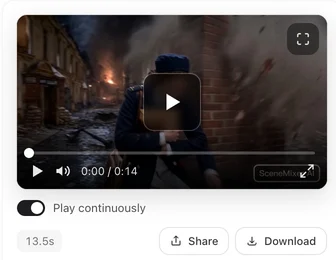
Downloads from an account without a paid plan carry a small SceneMixer AI label in the corner. On a paid plan, downloads are label-free by default; videos shared through a SceneMixer link always carry it. Separately, TikTok, YouTube and Instagram each have a setting to mark a post as made with AI; turn it on. Platforms can limit or remove realistic AI content that is not labelled. The AI label switch · AI short drama compliance.
Captions and music
The clip has dialogue and ambient sound but no subtitles burned in, which suits these platforms: add captions with the platform’s auto-captions or in your editor, so people watching on mute can follow. For music, use the platform’s licensed library or your own licensed track, kept well under the voices. Adding background music.
The first seconds
Viewers decide almost at once. Open on the conflict, a line that raises a question, or a striking image, not an establishing shot; end each episode on an open question so the next one gets watched. You can shape this in the script before it is read, or by editing the first shot of an episode. Write hooks and cliffhangers into your script.
Length and series
Platforms set their own maximum lengths and change them from time to time; check the current limit before posting a long episode. Post a series in order and name the parts in the title or the first frame of the caption, so a new viewer can find episode 1.
| Step | Do |
|---|---|
| Before the reading | Choose 9:16 Portrait in step 1 |
| Final segments | Generate on the tier whose sharpness you want to publish |
| Export | Composite the episode and download the file |
| Post | Upload the file natively; turn on the platform's AI label |
| Finish | Add captions and licensed music in the platform or your editor |
FAQ
Can I post a landscape project?
Yes, with bars. For phone feeds, start a vertical project; the frame cannot change after step 1.
Does the SceneMixer label stay on the file?
On accounts without a paid plan, yes. Paid plans can download without it. Platform AI labels are separate and still apply.
Should I post the share link?
Upload the file instead; links are for previews.
Can I add subtitles inside SceneMixer?
No. Add them in the platform's editor or your own editing app.
Is the video file a standard format?
Yes, an MP4 that every platform accepts.
Make it vertical, post the file
9:16 in step 1, composite, download, label, caption.
Updated October 2, 2026
Pricing·Novel to Video·Guides·Samples·Support·Privacy·Terms·Legal·Contact·© 2026 SceneMixer