The @ Menu in the Storyboard

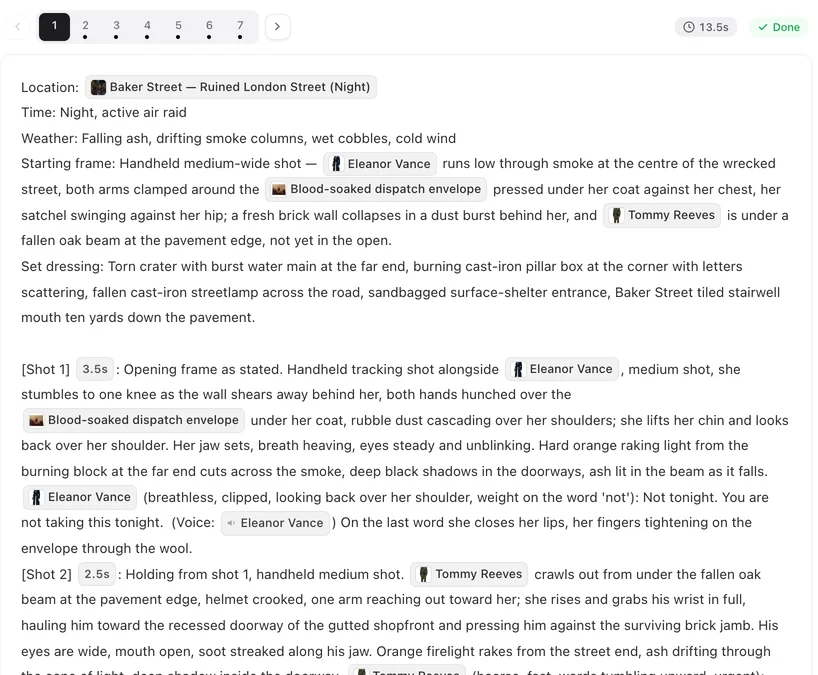
Open a finished episode and look at any segment: every name, voice tag and duration you see is a chip that came from this menu.
Opening it
Click Edit Script on a segment, put the cursor where you want the reference, and type @. The picker opens right there. Start typing to filter — the search box reads Search characters, scenes, items… — then click the entry, or press Esc to close without inserting.
Only entries that exist in this project appear. If the person or thing you want is not there, add it first: in the editor, Add assets on the left panel; or in step 2 of the project.
Cast
A character chip. Put it wherever the character is in the picture: @Mara turns from the window; In frame only: @Mara. The shot uses her image. A character who is mentioned but not visible should not get a chip in the picture description — who is in frame.
Note the hint the picker shows: a Cast chip references the image only. It does not give the character a voice. That is the next tab.
Voice
A voice chip goes right after a line of dialogue and reads (voice: 🔊Mara). It says which character’s voice speaks the line. Every line needs one. If a line has none, the editor warns you after saving that its audio may drift — meaning the line may be spoken in a voice that is not hers.
Two mistakes to avoid: using a Cast chip where a Voice chip belongs (the picker tells you; they are different), and tagging a line with the wrong character. Writing dialogue lines.
Scenes and Props
A Scenes chip normally sits in the Location field of the segment header — that is what tells the segment where it takes place. A Props chip goes into the Props line of the header and into the shot text where the object is handled: @Sealed letter is slid across the table. Props and locations in a shot.
Time
The Time tab inserts a duration chip: @3s = a three-second shot. Use it to change how long a shot runs. The seconds of all shots add up to the length of the segment, and the segment cannot exceed the cap of the video model you have selected. Shot seconds and timing.
After you save
Three warnings can appear, and none stops the save. …is not a character, scene or item in this project: you typed a name by hand instead of using a chip. …has no reference image yet: generate that entry’s image in step 2. Some dialogue lines are missing voice tags: add a Voice chip after each line. To find which line, read each line of dialogue to its end: the ones without a (voice: 🔊Name) chip after them are the ones to fix.
An amber note may also appear above the storyboard: a name written without @ in a shot, or a “do not show…” sentence about a person. And when you press Generate Video on a segment you wrote or edited, the editor asks first if some shots have no linked characters. The fix is the same each time: delete the typed name, type @ in its place and pick the entry. The amber notes · Shots with no linked characters.
| Tab | Inserts | Where it goes |
|---|---|---|
| Cast | A character chip | In the picture text, wherever the character is visible |
| Scenes | A scene chip | The Location field of the header |
| Props | A prop chip | The Props line, and the shot text where the object is handled |
| Voice | (voice: 🔊Name) | Right after a line of dialogue |
| Time | @3s and the like | On the shot whose duration you are changing |
FAQ
Nothing happens when I type @.
Make sure you are in edit mode (Edit Script) and the cursor is inside the storyboard text.
The person I want is not in the picker.
They are not in this project yet. Add them with Add assets in the editor, or in step 2.
Do I need a voice chip on every line?
Yes. A line without one may be spoken in the wrong voice, and the editor will warn you.
Can I just type the character's name?
You can, but the shot will not know which entry you mean and no image will be attached. Use the chip.
Can I delete a chip?
Yes. Put the cursor next to it and delete, or cut and paste it elsewhere. Discard undoes everything since you started editing.
Updated October 2, 2026
Pricing·Novel to Video·Guides·Samples·Support·Privacy·Terms·Legal·Contact·© 2026 SceneMixer