AI-Editing a Sheet: Outfit, Hair, Expression

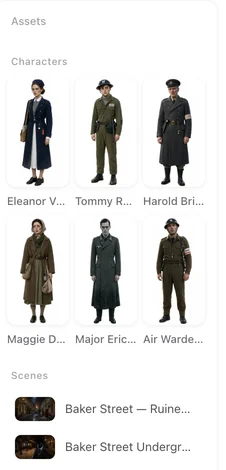
Open a finished episode and look at the left panel: an episode-only image would show here, marked as this episode's.
AI Edit Image, in step 2
Open the card, press AI Edit Image. The hint under the box says what it does: it uses the current image as reference — AI keeps the same character and applies your edits. Type the change in the box (Describe what to change…) and press Apply Edit. A moment later the card shows the edited image in place of the old one.
This changes the character for the whole project: every shot generated from now on uses the edited sheet. Shots already generated keep the old look until you regenerate them.
What to type
One change, in plain words, about something visible: an item of clothing and its colour, a hairstyle, an expression, glasses on or off, a scar. “Navy blue shirt”; “short curly hair”; “smiling”; “add a leather jacket”. Two or three small changes at once are fine; a redesign is not — for that, rewrite the description and regenerate. Rewriting the description.
The description does not change when you AI-edit. If the edit is meant to last, update the Clothing or Appearance text as well, so a future regeneration does not undo it.
A change for one episode: AI Fine-tune
In the episode editor, open a character or scene from the left panel and choose AI Fine-tune. Select a reference of the same type and describe the change; Generate. You can close the panel — it prompts you to confirm when it is done. The result is applied to this episode: Keep it, or Undo to restore the original. The rest of the series keeps the step-2 sheet.
Use it for a costume that belongs to one episode, a bruise that heals by the next, a room decorated for one occasion. For a look that recurs across episodes, a state is the better tool. States.
Cost and who can use it
Each edit or fine-tune is priced like an image; the price is on the button. On the current plan settings both are membership features, and the button says so when they are not available. Paid plans.
When the edit does something else
An edit that also moved the face or changed the age asked for too much at once. Undo (in the editor) or regenerate from the description (in step 2), then ask for one thing. An edit that had no visible effect usually described a mood rather than a change; name the garment or the hair.
| Tool | Where | Scope | Result |
|---|---|---|---|
| AI Edit Image | Step 2, the card | Whole project | Replaces the sheet |
| AI Fine-tune | Editor, left panel | This episode only | Keep or Undo |
| Rewrite description + Regenerate | Step 2, the card | Whole project | New sheet from the text |
| State | Step 2, Add a state | The segments you assign | A second image alongside the main one |
FAQ
What is the difference between AI Edit Image and AI Fine-tune?
Edit Image changes the character's sheet for the whole project. Fine-tune produces an episode-only image you can keep or undo.
Does AI Edit Image change the description?
No. Update the Clothing or Appearance text yourself if the change should survive a future regeneration.
Can I edit a scene image the same way?
Yes. The tools work on scene and prop cards too.
Does it cost credits?
Each edit is priced like an image; the price is on the button.
The edit changed more than I asked.
Undo or regenerate, then ask for one visible change at a time.
Updated September 26, 2026
Pricing·Novel to Video·Guides·Samples·Support·Privacy·Terms·Legal·Contact·© 2026 SceneMixer