AI Edit: Rewrite a Storyboard Segment by Saying What to Change

Start with one of the eight quick requests under the box: it types the beginning of a sentence for you to finish.
Step by step
- In the episode editor, find the segment’s storyboard card and press AI edit in the row of buttons under it. The card turns into Let AI revise this segment.
- Write what to change, in your own words, up to 500 characters. Name the shot if it matters: “in shot 3, she slams the door instead of closing it”.
- Press Revise. The button shows the price (1 credit) and the line under it says No charge if the edit fails. It takes a few seconds, sometimes up to twenty.
- Read Review changes. Removed text is struck through, new text is highlighted, and a summary line counts the changed lines and confirms the shots and seconds are the same.
- Press Save to keep it. Nothing is saved before that.
- Regenerate the segment’s video to see the new text on screen.
On a phone, the same steps happen in a sheet that rises from the bottom of the Script tab.
What AI edit can and cannot change
It rewrites what happens in the segment: lines, actions, moods, the time and weather, how a shot is framed in words, who is in a shot, a voice-over, even the location. It keeps the structure: the same number of shots, the same shot numbers and seconds, and the same header lines. It only uses characters, locations and props that already exist in your project, and it writes in the language the text is already in.
If your request needs a new shot, one shot fewer or different seconds, AI edit refuses it at no charge and points you to Edit by hand. AI edit or edit by hand.
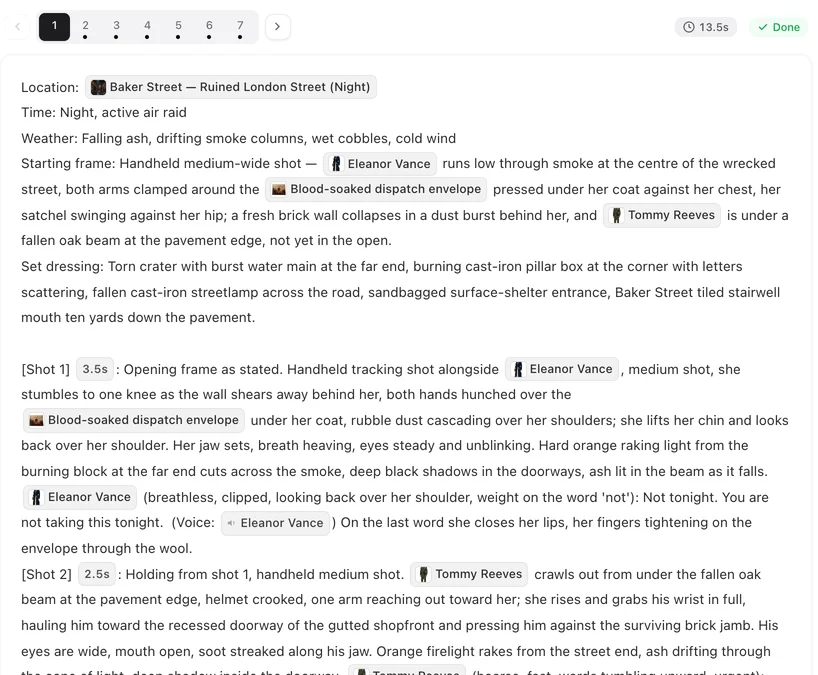
After the review
- Save — the new text replaces the segment’s text. The text before it is kept in History. Text history.
- Revise again — back to your request, still in the box; the next try starts from the saved text again, not from the rejected revision.
- Edit by hand — opens the normal editor with the AI’s version in it, so you can adjust a word before saving.
- Discard — nothing changes. The credit for this revision is not returned: the revision was made.
Two warnings you may see
If a changed line looks too long for its shot, the review says the dialogue in shot N takes about X seconds to say but the shot is Y seconds long, and suggests revising again to shorten it. If a new line is given to a character who was not in this segment before, it names them so you can check that is who you meant. Neither blocks saving. Every AI edit message.
Which text it edits
The one on your screen. If your storyboard is shown translated into your interface language, AI edit revises that translation and the site carries the change into the original, the same way a hand edit to the translation does. Translated storyboards.
When it is not available
While the episode’s storyboard is being generated, while a previous edit to the translated text is still being carried into the original, and after many edits in a short time (there is an hourly limit). Manual editing and history are not affected.
| Button | What happens | Credits |
|---|---|---|
| Revise | AI rewrites the text and shows the changes | 1 if a revision comes back; 0 if it fails |
| Save | The text is replaced; the old one goes to History | 0 |
| Revise again | Back to your request, same text as a base | 1 for the next revision |
| Edit by hand | Opens the editor with the AI version | 0 |
| Discard | Nothing changes | The revision already shown stays charged |
FAQ
Does saving regenerate the video?
No. It changes the storyboard text only. Press regenerate on the segment when you want a clip from the new text.
Can it add a shot?
No. The shot count and seconds stay fixed. Add or remove shots by hand.
Can it bring in a new character?
Only characters already in the project. Add a new one to the asset library first.
Is my original text lost?
No. The original version and the texts before your last five changes are kept in History.
Does it work on a phone?
Yes: the AI edit button on the Script tab opens the same flow in a sheet.
Say what to change
One sentence, a review of every change, and nothing saved until you press Save.
Updated September 30, 2026
Pricing·Novel to Video·Guides·Samples·Support·Privacy·Terms·Legal·Contact·© 2026 SceneMixer