Adding an Asset to This Episode, and Episode-Only Edits

Open a finished episode and click a character in the left panel to see the episode-scoped controls.
What the panel shows
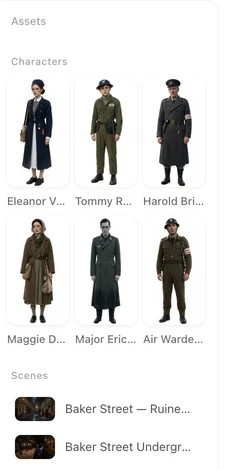
Three groups — Characters, Scenes, Items — holding the entries the storyboard names. An entry that is in the project but not in this episode is not shown, which is why the @ menu may not offer it: bring it in first.
Add assets
Press Add assets. The picker shows the project’s entries by type with a search box; Added marks the ones already in. Pick one and it joins the panel. Members also see the asset library — entries from your other projects — with Also copy voice for characters. Then name it in a shot with @. The @ menu.
An entry that does not exist anywhere yet is created in step 2, not here: Add on the step-2 tab, describe it, generate its image, then add it to the episode. Creating a new entry that the script did not produce is a paid-plan feature. What a paid plan changes.
Edit (this episode)
Click an entry in the panel and choose Edit (this episode). Replace its image — upload one, or make one with AI Fine-tune — and the change applies to this episode only; the note reads Changes apply to this episode only. The project’s entry in step 2 and every other episode keep the original. Uploading an image is a paid-plan feature; it costs no credits.
Use it for a look that belongs to one episode: the wedding dress, the bandaged hand, the room decorated for one night. A look that recurs across episodes is better as a state. AI Fine-tune · States.
States in the panel
An entry with states shows them, and a segment can be told which one to use: Use this state in this shot, Use this state in this episode, or Use main image. A dashed AI pick marks the state the storyboard chose for a shot on its own; your choice overrides it.
Removing
An entry that the episode no longer names can be left in the panel; it does nothing until a shot names it. Delete the project entry in step 2 if it should not exist at all.
| Action | Scope | Cost |
|---|---|---|
| Add assets | This episode gains an existing entry | Free |
| Edit (this episode) — upload | This episode’s image for that entry | No credits; paid plan |
| Edit (this episode) — AI Fine-tune | This episode’s image for that entry | Priced like an image |
| Use this state in this shot / episode | One segment, or this episode | Free (the state image itself is priced when made) |
FAQ
Why is a character missing from the @ menu?
It is not in this episode yet. Add it with Add assets, then name it.
Does Edit (this episode) change the character everywhere?
No. Only this episode. Step 2 and other episodes keep the original.
Can I bring in a character from another project?
Members can, from the asset library in the picker, with the option to copy the voice too.
Where did the crowd image line go?
Crowd images are no longer offered. Background people come from the one line in the segment header. Background people.
Do I need a paid plan to upload an image for one episode?
Yes. Uploading is a paid-plan feature. It does not cost credits.
Does adding an asset cost credits?
No. Adding is free; the shots that use it are priced as usual.
Bring in who the scene needs
Add the entry, name it in the shot, generate the segment.
Updated October 2, 2026
Pricing·Novel to Video·Guides·Samples·Support·Privacy·Terms·Legal·Contact·© 2026 SceneMixer