Guide · Languages
How to Set the Dialogue Language of an AI Short Drama and Localize the Cast (2026)
Published September 12, 2026

Step by step
- Paste or upload the script. TXT, DOCX or Markdown, in whatever language it was written; the analysis step reads any of the supported languages.
- Choose the dialogue language. In Step 1, next to the visual style and aspect ratio, open "Dialogue language". The list is the 15 interface languages plus Cantonese. The setting takes effect at parsing, so choose before you press "Next".
- Choose the target region. Western, East Asian, Southeast Asian, Latin American, Central Asian, or "follow the script". This decides the cast's names and ethnicity, scene architecture and props, and the language of any text visible in the frame. For a market release, match the region to the dialogue language: Korean dialogue with an East Asian region, Spanish with Latin America, Indonesian with Southeast Asia.
- Parse and review. The synopsis, character list and episode outlines appear in your interface language; the dialogue inside them is already in the chosen language. Read the first episode's lines here — this is the cheapest place to fix a phrasing.
- Generate references, then storyboards, then video. Character sheets carry the localized look; storyboards copy the lines verbatim; each segment is generated with the line performed in the dialogue language.
What changes with the region, and what does not
| Element | Follows the region | Follows the dialogue language | Stays as written |
|---|---|---|---|
| Character names | Yes — local names | — | Names you explicitly keep in the script |
| Cast ethnicity and wardrobe | Yes | — | Costume style you choose in Step 1 |
| Street scenes, architecture, props | Yes | — | Visual style (live-action, 3D, painterly…) |
| Text visible in the frame (signs, screens) | Yes | — | — |
| Spoken lines | — | Yes | Plot, beats, cliffhangers |
| Shot timing | — | Yes — computed from that language's speaking rate | Segment length (10–15 s by default) |
Region and dialogue language are independent on purpose. A story about a Western family can be released with Portuguese dialogue for Brazil without changing the cast, or re-cast for an East Asian market with Korean dialogue; both are one setting each.
Shipping one script to several markets
- One project per market. The dialogue language is fixed at parsing, so a second market is a second project from the same script. Concept art, storyboards and video are generated per project; there is no shared-asset shortcut yet, and that is what keeps the cast consistent within each version.
- Edit in your language. Whatever your interface language, the storyboards you see are translated for reading and editing; when you change a line, the change is written back to the production script and the segment is regenerated in the dialogue language.
- Keep lines short for German and Ukrainian. These two show an occasional mispronounced ending on long sentences. The storyboard prompt already caps sentence length for them; if you rewrite lines by hand, keep the habit.
- Check the first episode before the batch. Generate episode 1, listen to two or three segments, then batch the rest. Regenerating a single segment costs only that segment.
Common mistakes
- Changing the dialogue language after parsing. Existing outlines keep their old lines; re-parse the project (or start a new one) after changing it.
- Region set to "follow the script" for a translated release. You get the original market's names and streets with the new language on top — fine for a bilingual audience, wrong for a localized launch.
- Pasting lines in a third language into a storyboard. The submit guard will stop the segment and ask you to confirm; if you meant it, confirm, otherwise fix the line.
Languages
Native dialogue in 15 languages
Every series below was produced by the same pipeline with the cast speaking that language natively: the interface, the working documents and the spoken lines are all in one language, and nothing is dubbed. Open one to hear it.
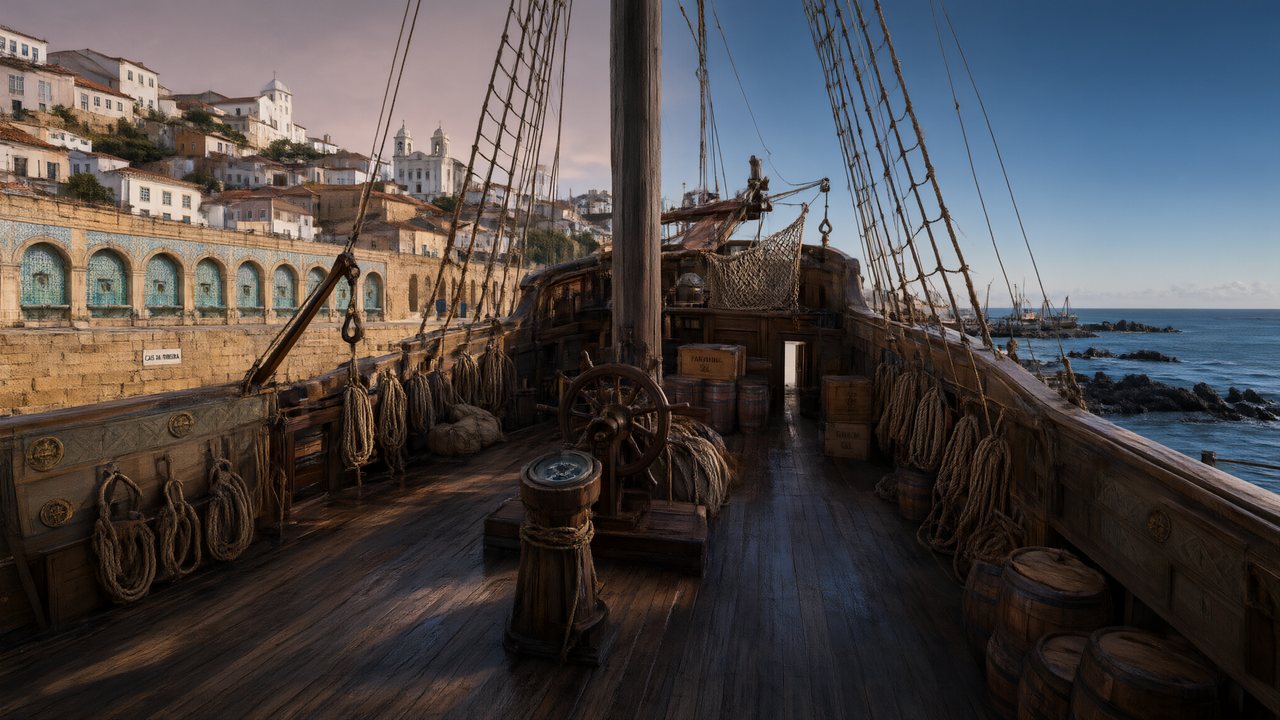 A Carta de LisboaPortuguêsNative dialogue
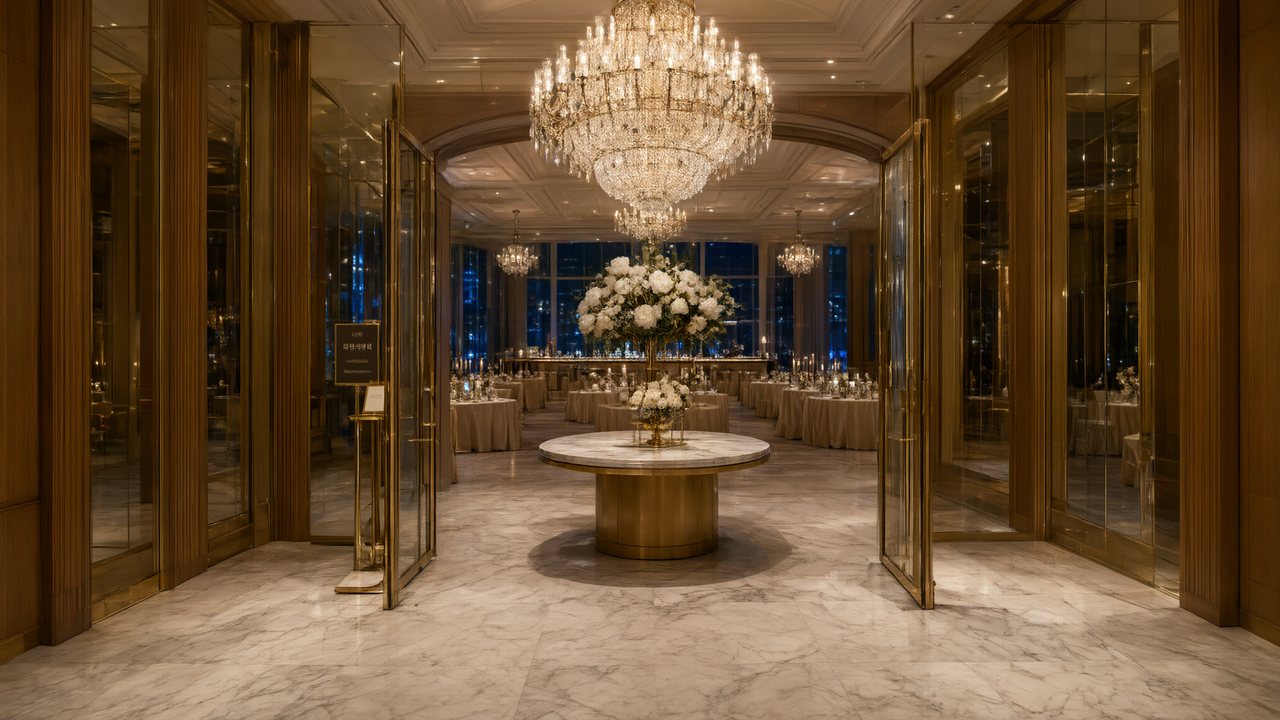 윈터 프라미스한국어Native dialogue
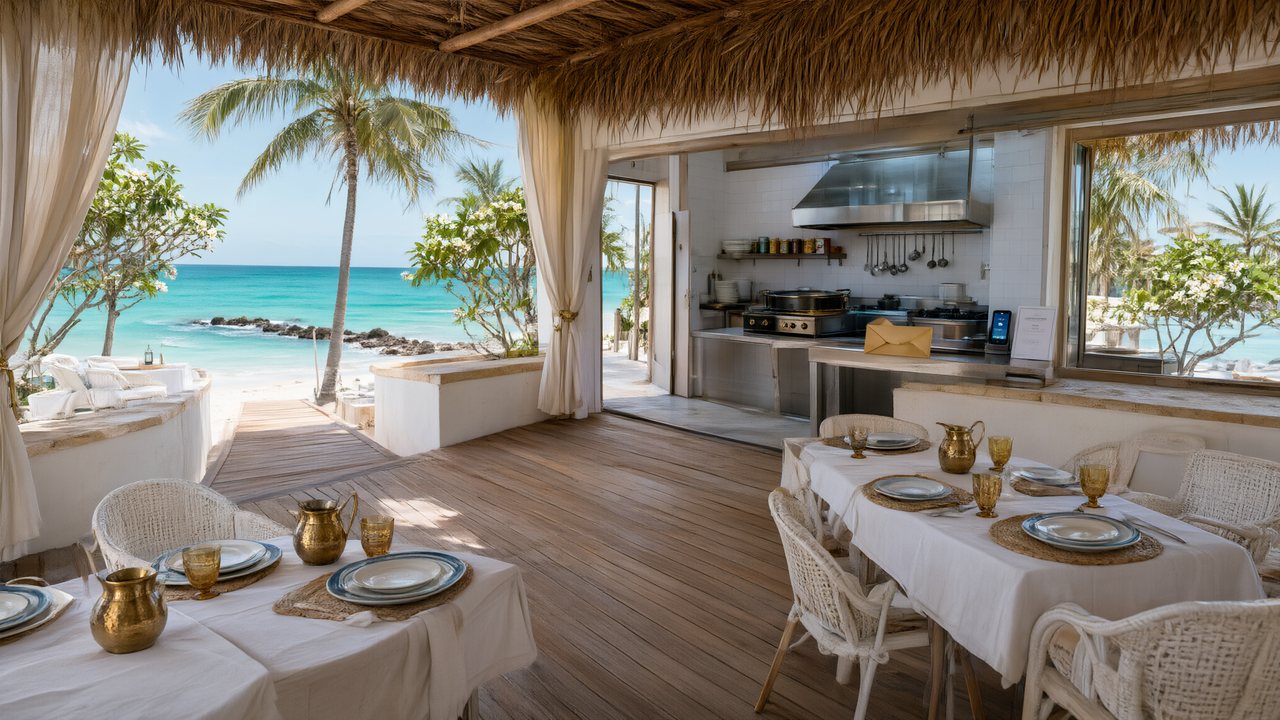 El Secreto de CostaEspañolNative dialogue
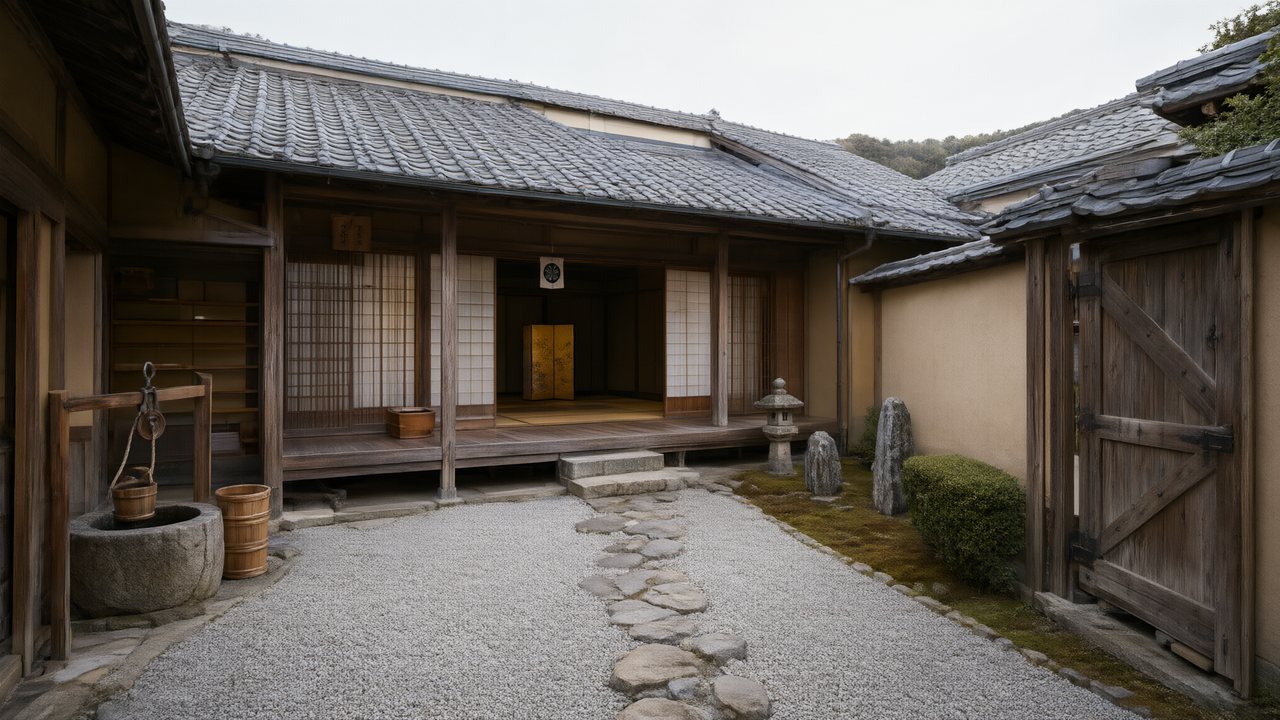 浪人の誓い日本語Native dialogue
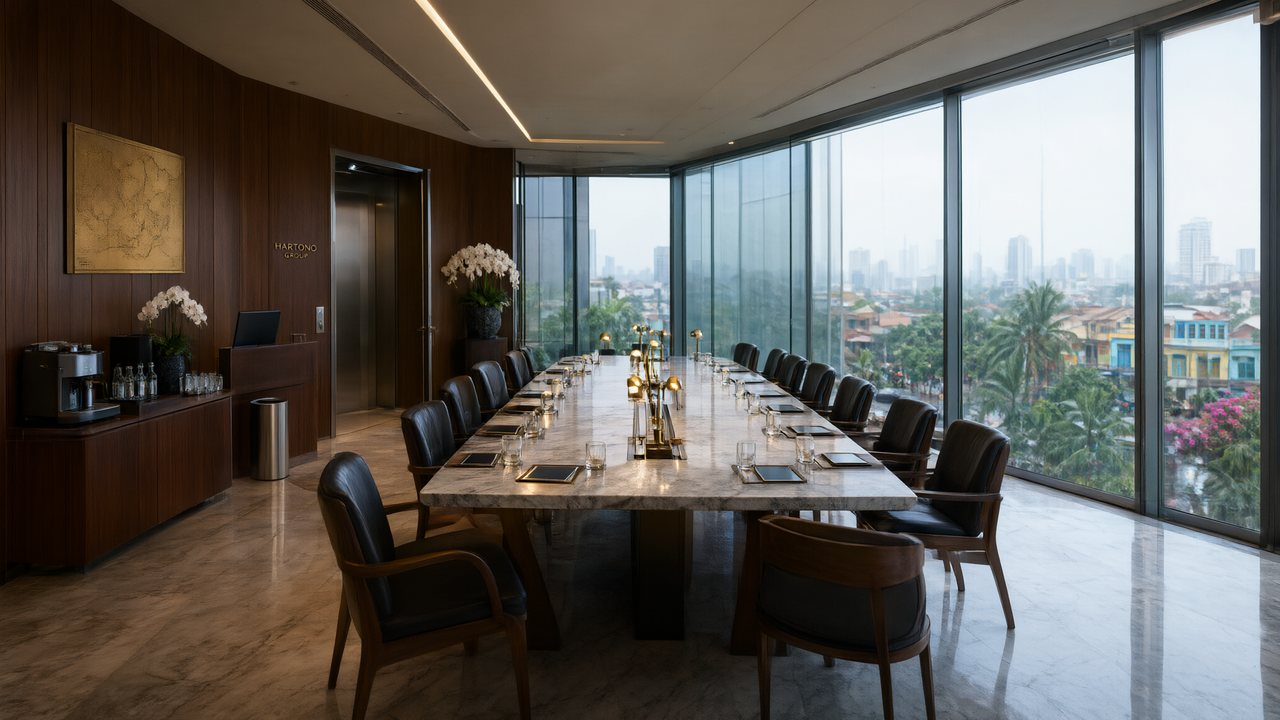 Ikrar JakartaBahasa IndonesiaNative dialogue
 Зимняя коронаРусскийNative dialogue
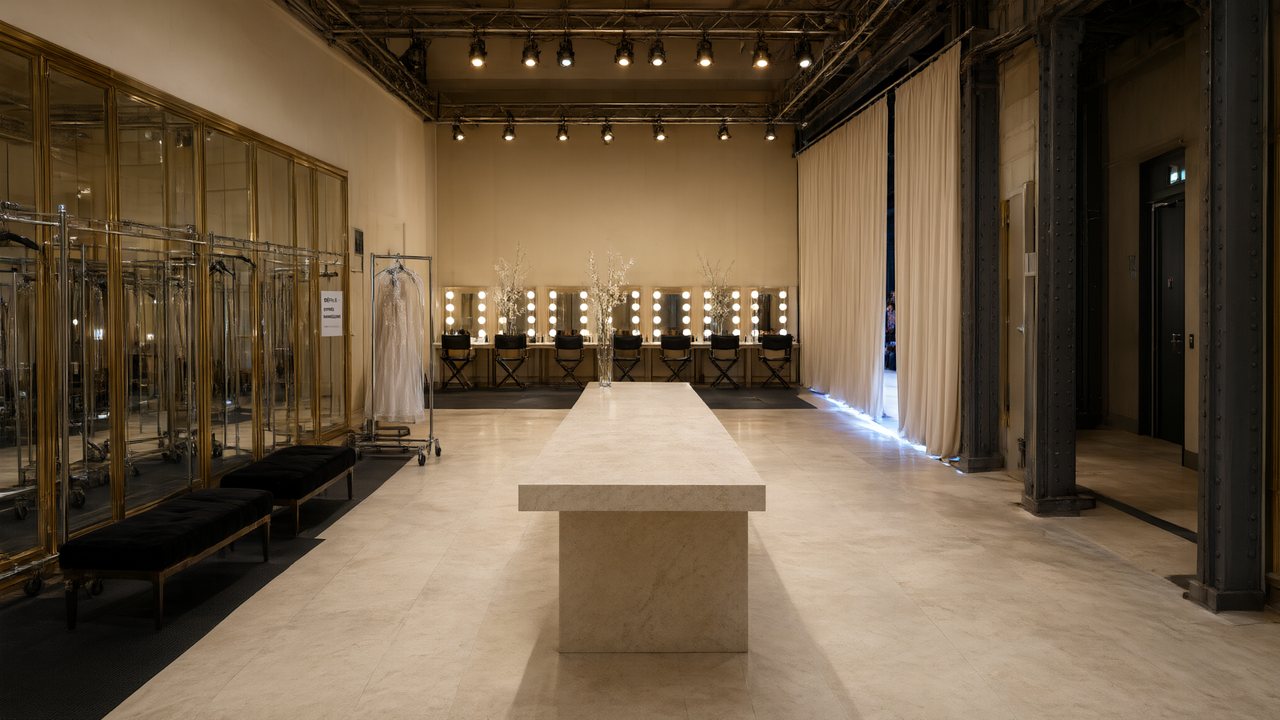 L’Héritier du DéfiléFrançaisNative dialogue
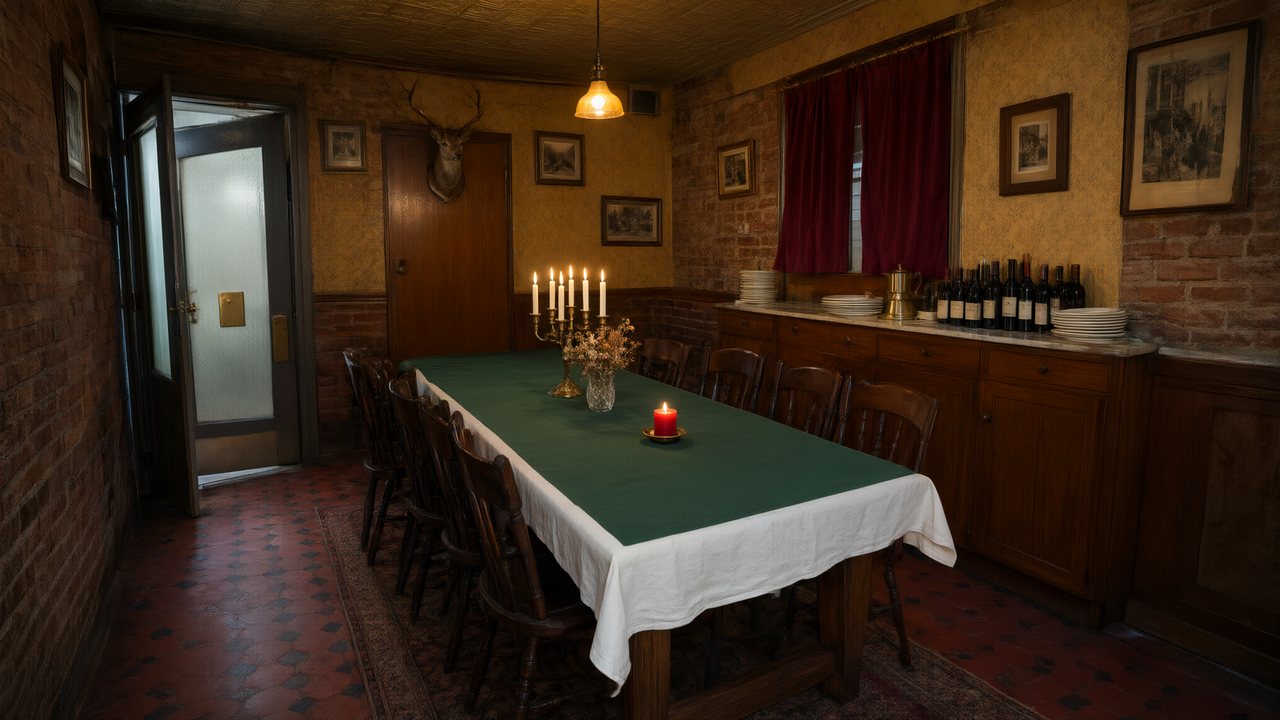 Il Tavolo dell'OlivaItalianoNative dialogue
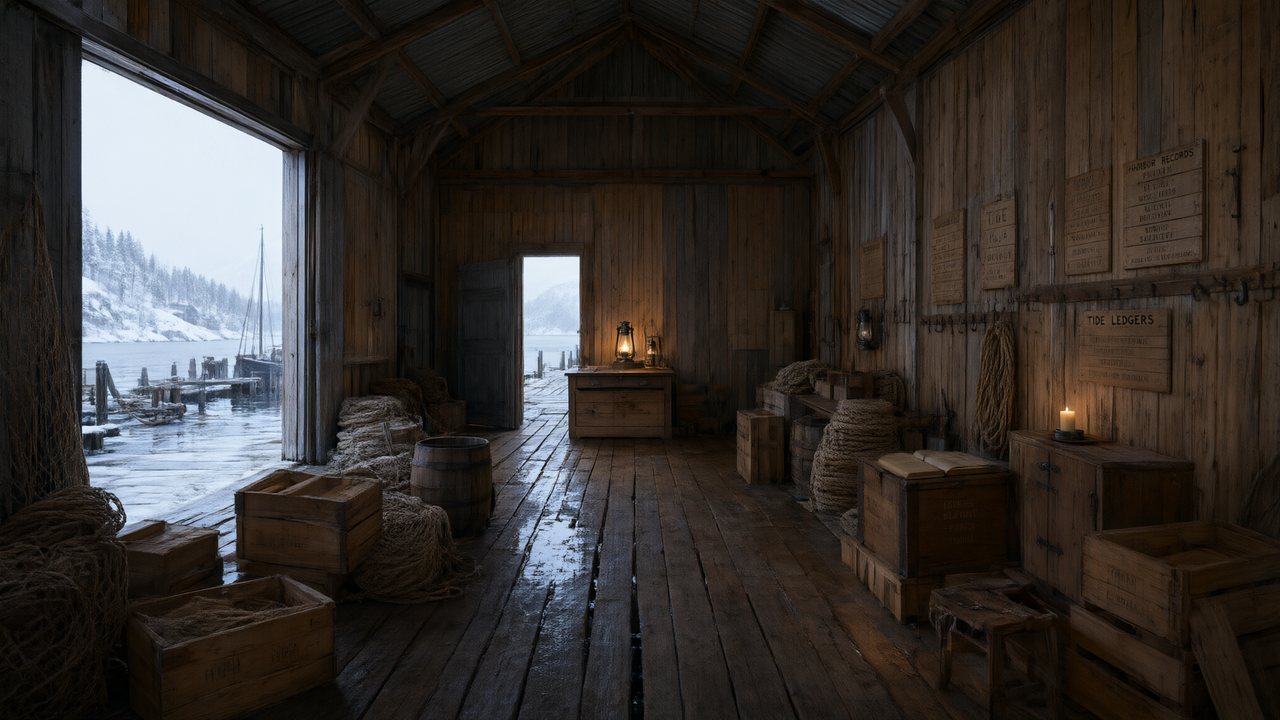 De Vuurtoren van de FjordNederlandsNative dialogue
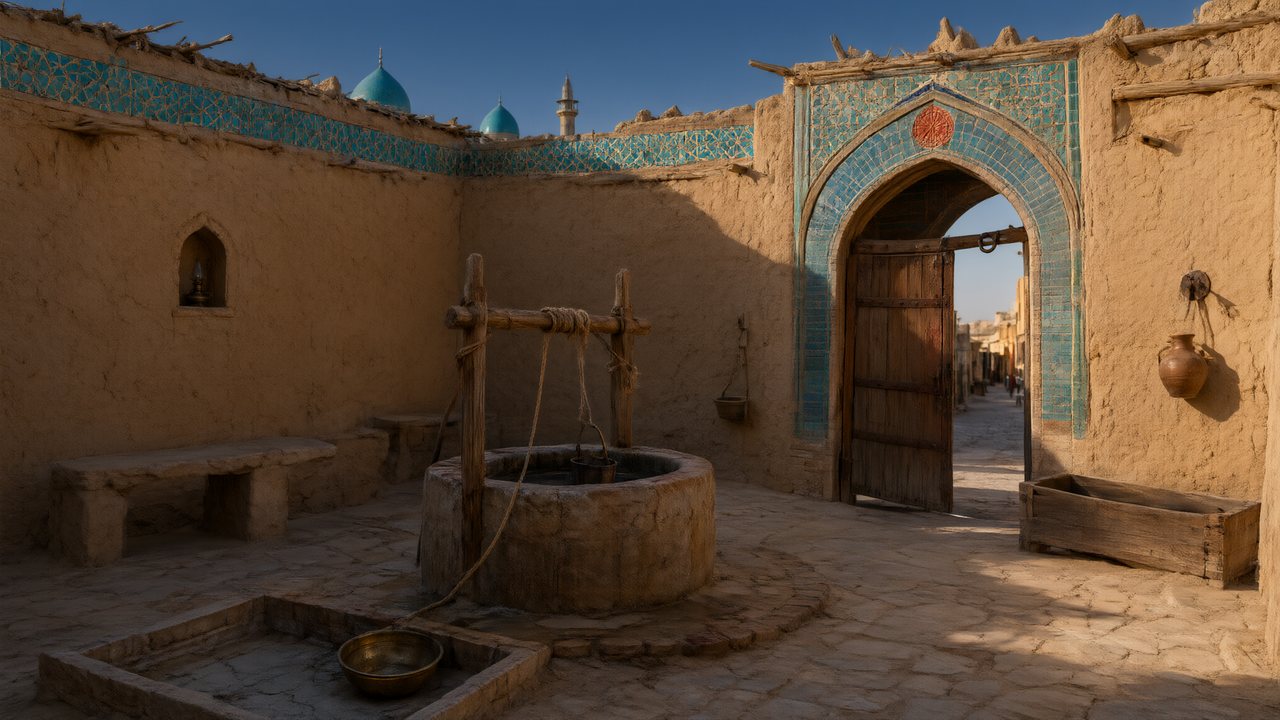 العهد الصحراويالعربيةNative dialogue
 Çantasındaki SözleşmeTürkçeNative dialogue
 Die Istanbul-TäuschungDeutschNative dialogue
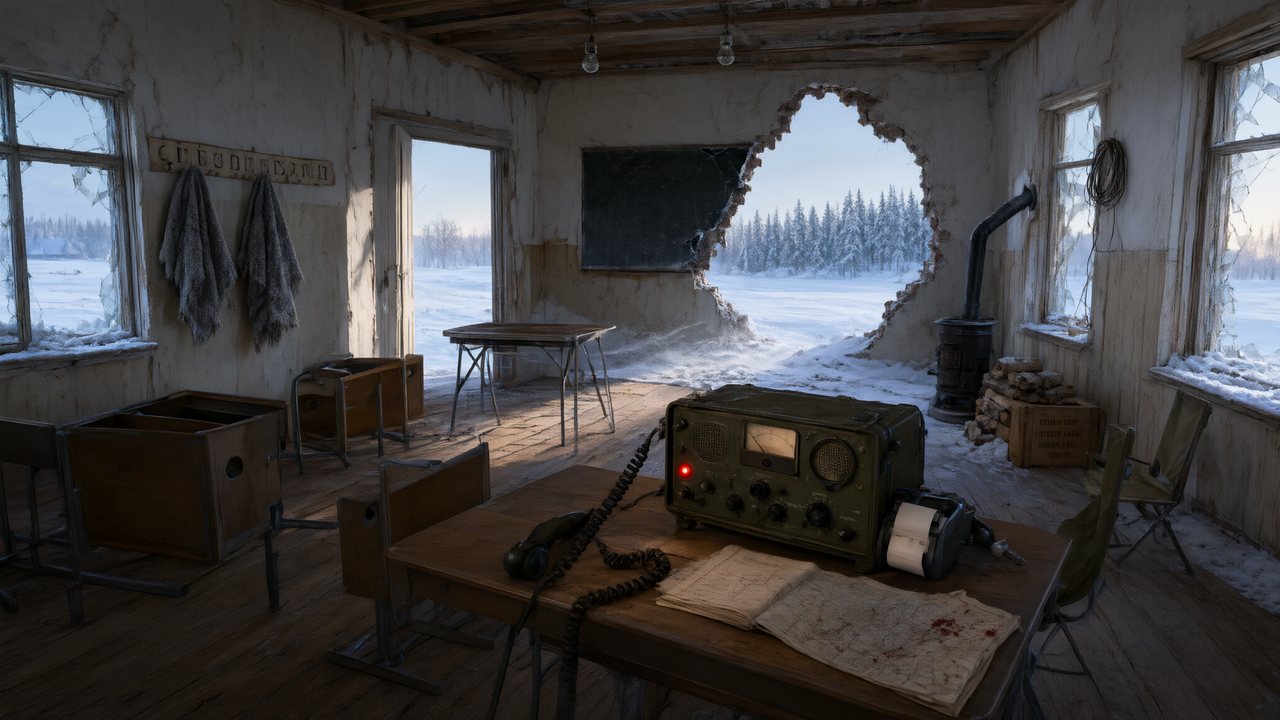 Останній сигналУкраїнськаNative dialogue
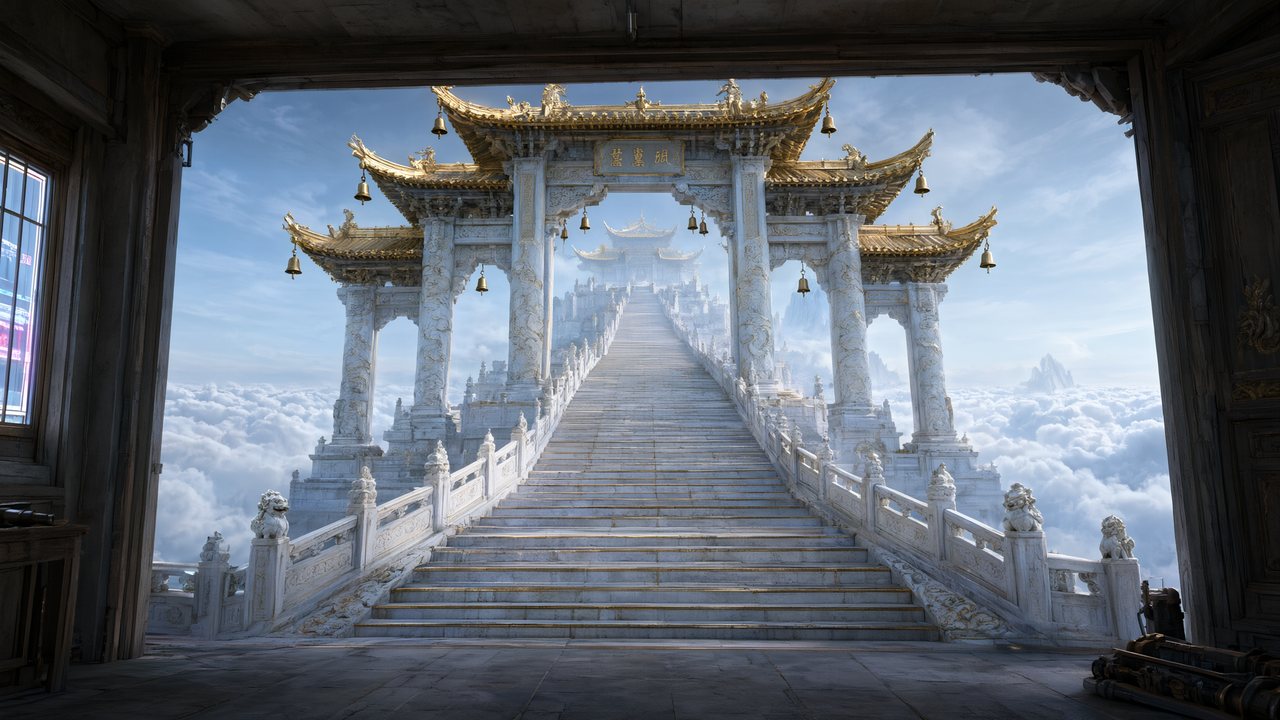 問劍青雲繁體中文Native dialogue
 The Last EnvelopeEnglishIn your language
FAQ
Where do I set the dialogue language?
In Step 1 of the project wizard, in the same form as the visual style and aspect ratio. It applies when the script is parsed, so set it before pressing Next; changing it later requires re-parsing.
Can one project have episodes in different languages?
No — the dialogue language is per project. For a second language, create a second project from the same script; that is also what keeps each version's cast consistent across episodes.
Do I need to translate the script myself first?
No. Upload the script in the language it was written in; the analysis step writes the outlines with the dialogue in the language you chose, and the storyboards copy those lines.
Will the cast look local if the dialogue is Korean?
Only if you also set the target region to East Asian. Region controls names, faces, wardrobe, streets and on-screen text; the dialogue language controls the spoken lines. Set both for a localized release.
Release the same story in a new market
Dialogue language and target region are two settings in Step 1; the cast, the streets and the lines follow.
Sign up freeWorkflow reflects SceneMixer's project wizard as of 2026-09-12; language and region options are listed in Step 1.