Text Appearing in the Picture, and Dialogue Read by the Wrong Voice or with the Wrong Words: Both Fixed in the Storyboard

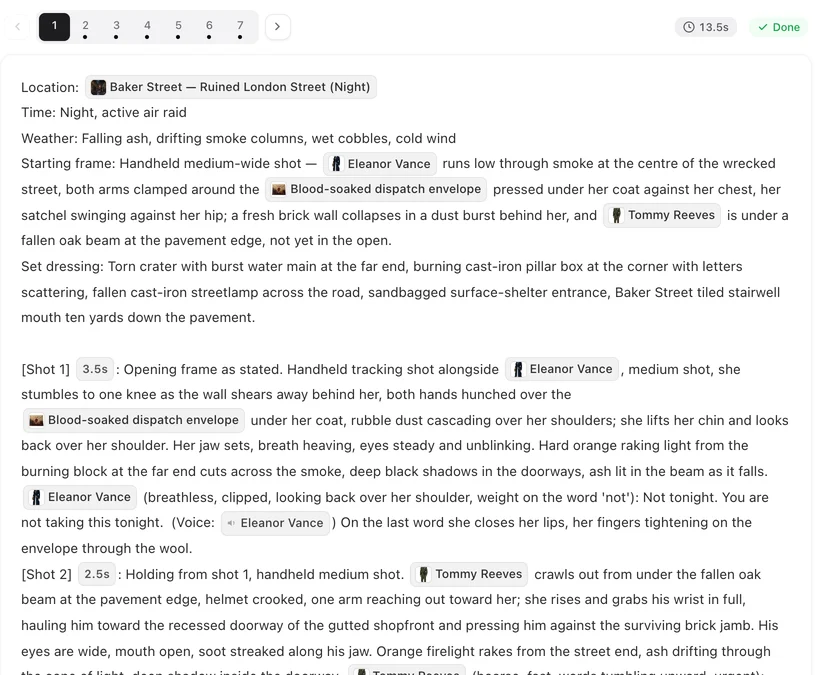
Select the segment, press Edit, and read the shot: the speaker tag, the bracketed delivery note, the line, and the voice tag at the end.
Text that appears in the picture
The site asks the video model for clean picture: dialogue is carried by sound, not subtitles. When lettering shows up anyway, something in the input invited it: a shot that says “a subtitle reads…” or “the sign says…”, a phone or a screen described with its content, a prop described with a label, or a character sheet with writing on the clothes. Delete the mention (describe a blank screen, an unlabelled bottle) and regenerate. On-screen captions are a separate site-wide feature that is not switched on at the moment; add readable text in a video editor after download.
Dialogue read by the wrong character
Every spoken line in a shot has a speaker tag in front and a voice tag at the end. The voice tag decides whose voice reads it; a line without one, or with the other character’s, is read by the wrong person. Press Edit on the segment, put the right character in both tags (the @ menu inserts them), save, regenerate. A character who speaks from outside the frame needs the off-screen note in the bracket, or the model will put them in the picture. Dialogue Lines, Voice-Over and Captions.
Words changed or a line skipped
The model reads the line as written and nothing else: if the words are wrong, the storyboard has the wrong words. Check the line in the segment, not in the script — the storyboard may have paraphrased. Put the exact sentence in, keep it short enough for the shot’s seconds (the editor does not check this, so give a spoken shot the time it takes to say), regenerate. A line that is missing from the video was missing from the shot text or had no speaker tag.
The voice itself is wrong
If the right character speaks with a voice that does not suit them, the fix is in Step 2: rematch or pick another voice on the character, then regenerate the segments. Changing the voice does not touch existing clips. How Character Voices Work.
Kanji, names and pronunciation
Names written in kanji or with unusual readings can be read wrongly by the voice. Write the name in the line the way it should be pronounced — kana or romanisation for Japanese, pinyin-friendly characters for Chinese — and keep the display name on the sheet as you like; only the line is read aloud. Language rules for dialogue: Dialogue Language and Cast Localization.
| Symptom | Where it comes from | Fix |
|---|---|---|
| Subtitles or signs in the picture | A mention of writing, a screen or a caption in the shot or a description | Remove the mention; describe blank surfaces |
| Wrong character speaks | Voice tag or speaker tag on the line | Set both tags to the right character |
| Words changed | The line as written in the storyboard | Put the exact sentence in the line |
| Line missing | No line or no speaker tag in the shot | Add the line with its tags |
| Voice does not suit | The character's voice in Step 2 | Rematch or pick another voice |
FAQ
Can I add real subtitles later?
Yes, in any video editor after download. The site delivers clean picture on purpose.
The script has the right words but the video does not.
Check the segment's shot text; the storyboard may have shortened it. The video reads the storyboard.
Why did the off-screen character appear on screen?
The line lacked the off-screen note. Add it in the bracket before the line.
Do these fixes cost credits?
Editing is free; regenerating the segment costs its normal price.
Can two characters speak in one shot?
Yes, each line with its own tags, in order.
The clip has a word or a line I never wrote.
If it sits at the start or end, cut it with Trim; in the middle, remove that moment. To replace what is said, use Redub. Trim · Redub.
Fix the words, then regenerate
What the video says and shows is what the storyboard says; edit it there.
Updated October 2, 2026
Pricing·Novel to Video·Guides·Samples·Support·Privacy·Terms·Legal·Contact·© 2026 SceneMixer