How the Episode Editor Lays Out Vertical (9:16) and Landscape (16:9) Projects

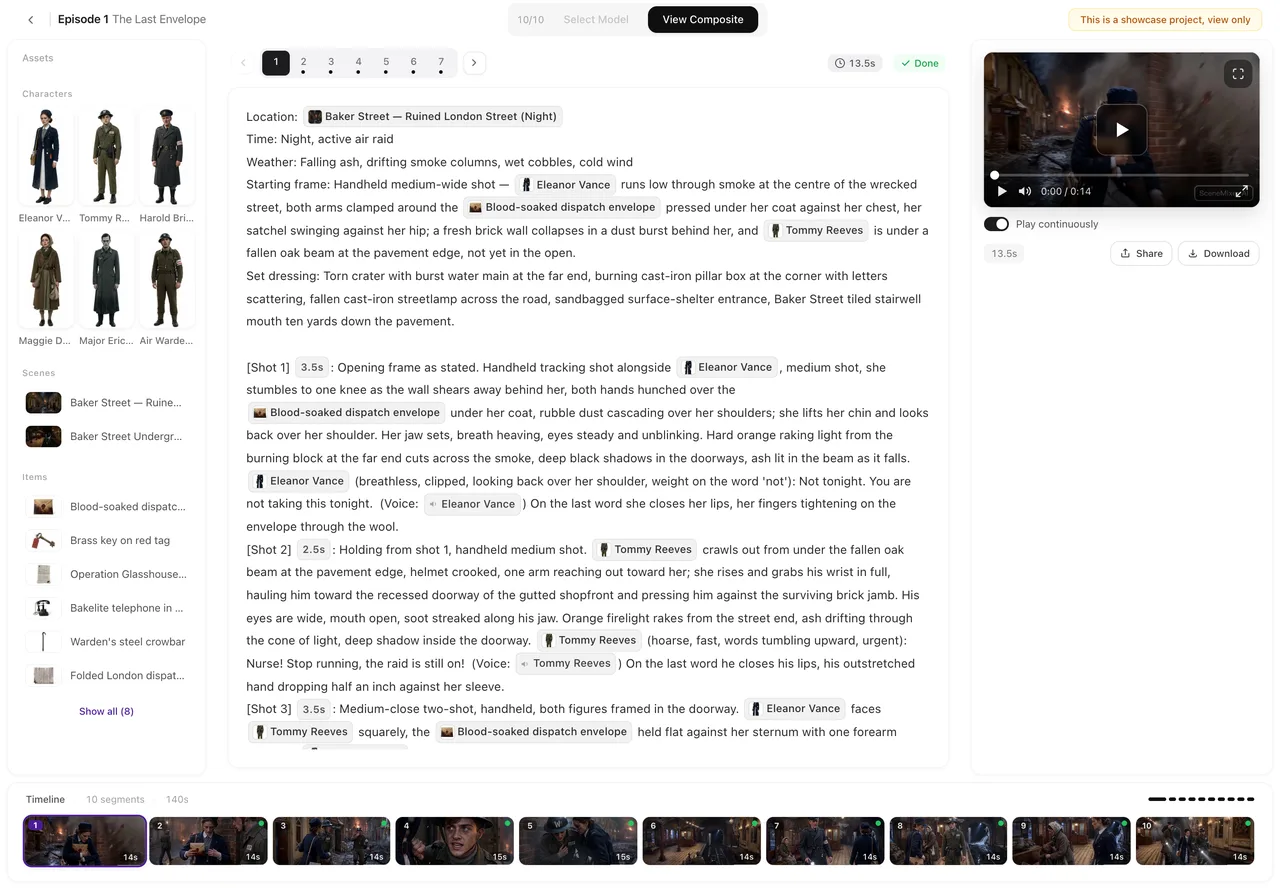
Open a 9:16 project and a 16:9 project side by side: the timeline moves from the middle to the full width.
The three columns
Left: the episode’s assets — characters, locations, props. Middle: the selected segment’s storyboard. Right: the player for that segment, with its controls and the Edit this clip panel. Timeline: one card per segment. A tour of the editor.
Vertical projects
A 9:16 clip is tall, so the right column runs the full height of the window and the player is as tall as the column allows, after leaving room for the controls under it. The left column runs full height too. The timeline sits only under the storyboard in the middle. On a wide screen the right column widens to fit the video.
Landscape projects
A 16:9 clip is wide, so the timeline gets the full width of the window along the bottom, and the side columns stop above it. The right column takes a fixed share of the width and the video fills it edge to edge. Vertical or landscape.
The row under the storyboard
Every segment’s storyboard card ends with one row: Edit, AI edit and History on the left, Insert and Delete after them, and a single solid button on the right — Generate or Regenerate — with its price. On a narrower window the smaller buttons shrink to icons first, and only then does the row wrap into two lines. AI edit and History.
Under the player
One line with Play continuously, the version number and length, share and download; on a narrow column share and download become icons. Below it, whenever the segment has a clip, the three tabs of Edit this clip: AI visuals, Redub and Trim. Edit this clip.
The timeline
When there are more segments than fit, small arrows appear at the two ends; click one to scroll about a screen’s width, or scroll with the mouse wheel — it moves sideways. The selected segment is scrolled into view when you change segments, and the timeline stays where you left it otherwise. Every icon on a timeline card.
Full screen
The player’s full-screen button shows the whole clip, vertical or landscape, with the controls, and Play continuously keeps going from segment to segment in full screen.
On a phone
The columns become tabs — Assets, Script, Preview. On the Script tab the buttons sit in two rows of three, with the main button’s price under its label. Using SceneMixer on a phone.
| Vertical (9:16) | Landscape (16:9) | |
|---|---|---|
| Side columns | Full height | Stop above the timeline |
| Timeline | Under the storyboard only | Full width along the bottom |
| Player | As tall as the column allows | Fills the column's width |
| Right column width | Follows the video | A fixed share |
FAQ
Can I switch between the two layouts?
The layout follows the project's aspect ratio, which is set when the project starts.
The buttons turned into icons. Where did the words go?
The window is narrow; hover an icon to see its name, or widen the window.
Why does the timeline sit in the middle in my project?
It is a vertical project; the side columns run full height to give the tall video room.
Work in the layout that fits your video
Tall columns for vertical, a wide timeline for landscape, the same buttons in both.
Updated September 30, 2026
Pricing·Novel to Video·Guides·Samples·Support·Privacy·Terms·Legal·Contact·© 2026 SceneMixer